Installation
Max Mega Menu is a free plugin for WordPress. To install, login to WordPress then go to Plugins > Add New and search for “Max Mega Menu”.
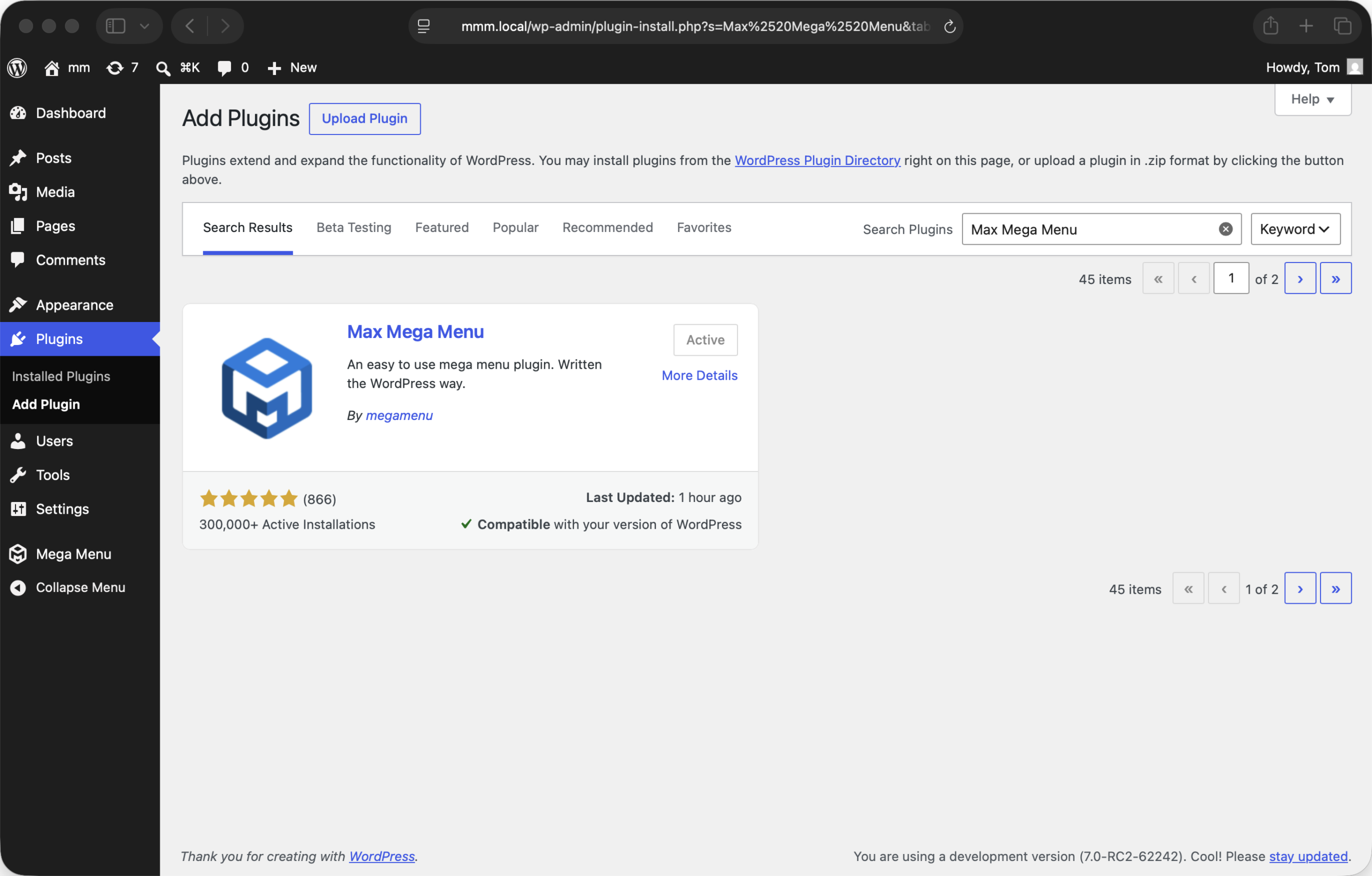
After installation you will see the following changes made to your WordPress Dashboard:
Dashboard > Appearance > Menus (menu management)
There will be a Max Mega Menu Settings box on the left and a blue Mega Menu link will appear when hovering over each menu item.
Dashboard > Mega Menu (plugin options)
This is a new page where you will be able to create menu themes and manage the plugin options.
Max Mega Menu Pro Installation
Users looking for extra menu functionality and priority support can upgrade to Max Mega Menu Pro. After purchase you will be sent a zip file which can be installed by going to Plugins > Add New > Upload Plugin. Max Mega Menu Pro installs alongside Max Mega Menu (free), seamlessly extending the existing menu functionality (there’s no need to rebuild your menus).
We also have detailed Max Mega Menu Pro installation instructions with screenshots.
Block Theme Setup
If you’re using a modern block based WordPress theme you’ll first need to create a menu location. After installation, head to Mega Menu > Menu Locations and click the “Add your first menu location” button.
If you’re using a classic WordPress theme you’ll see a list of all of the supported Menu Locations on this page.
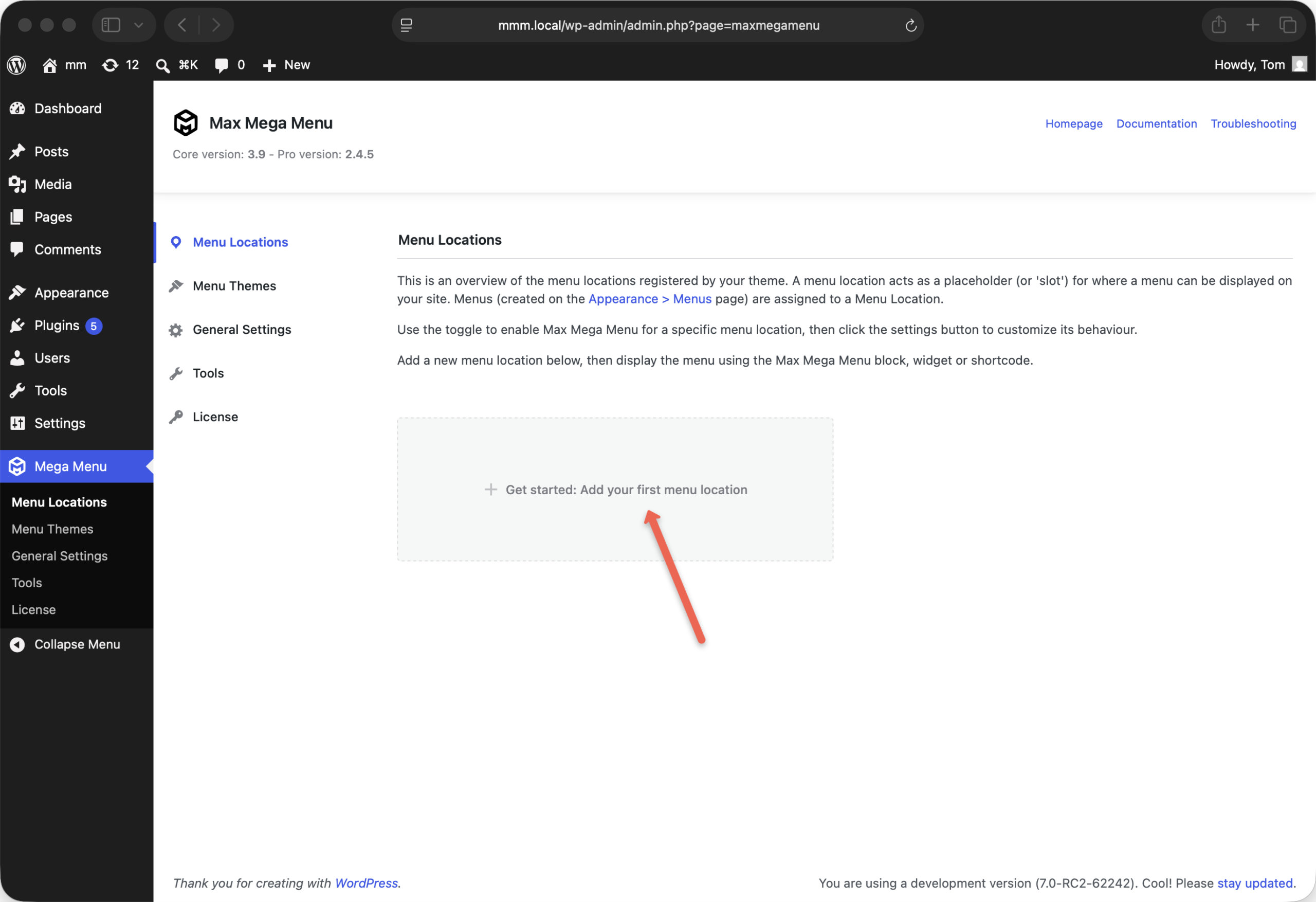
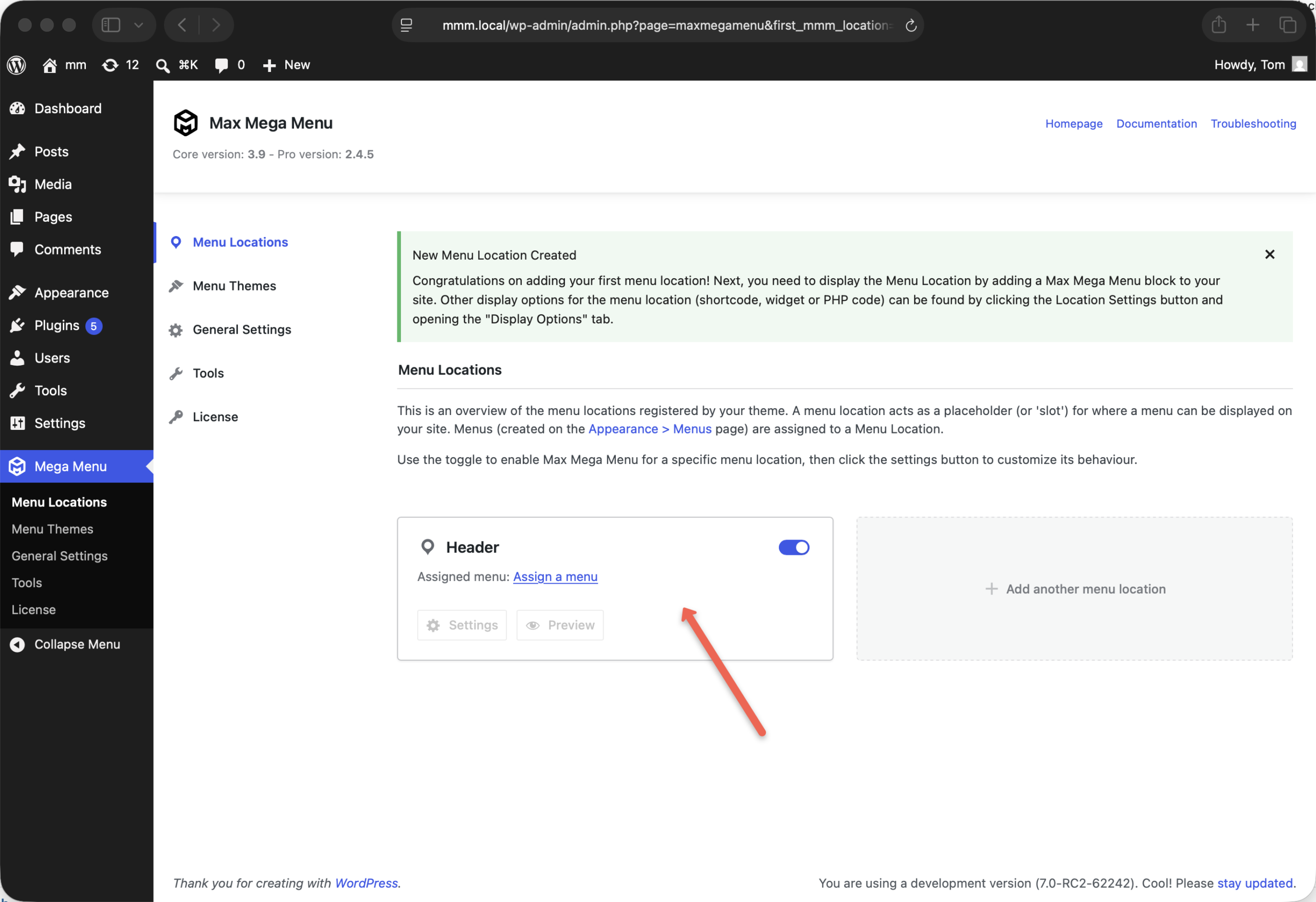
Follow the steps to create the menu location. In this example, we’ll call the location “Header”
Go to Appearance > Menus, create a new menu (or select an existing one) and tag it to the new “Header” menu location:
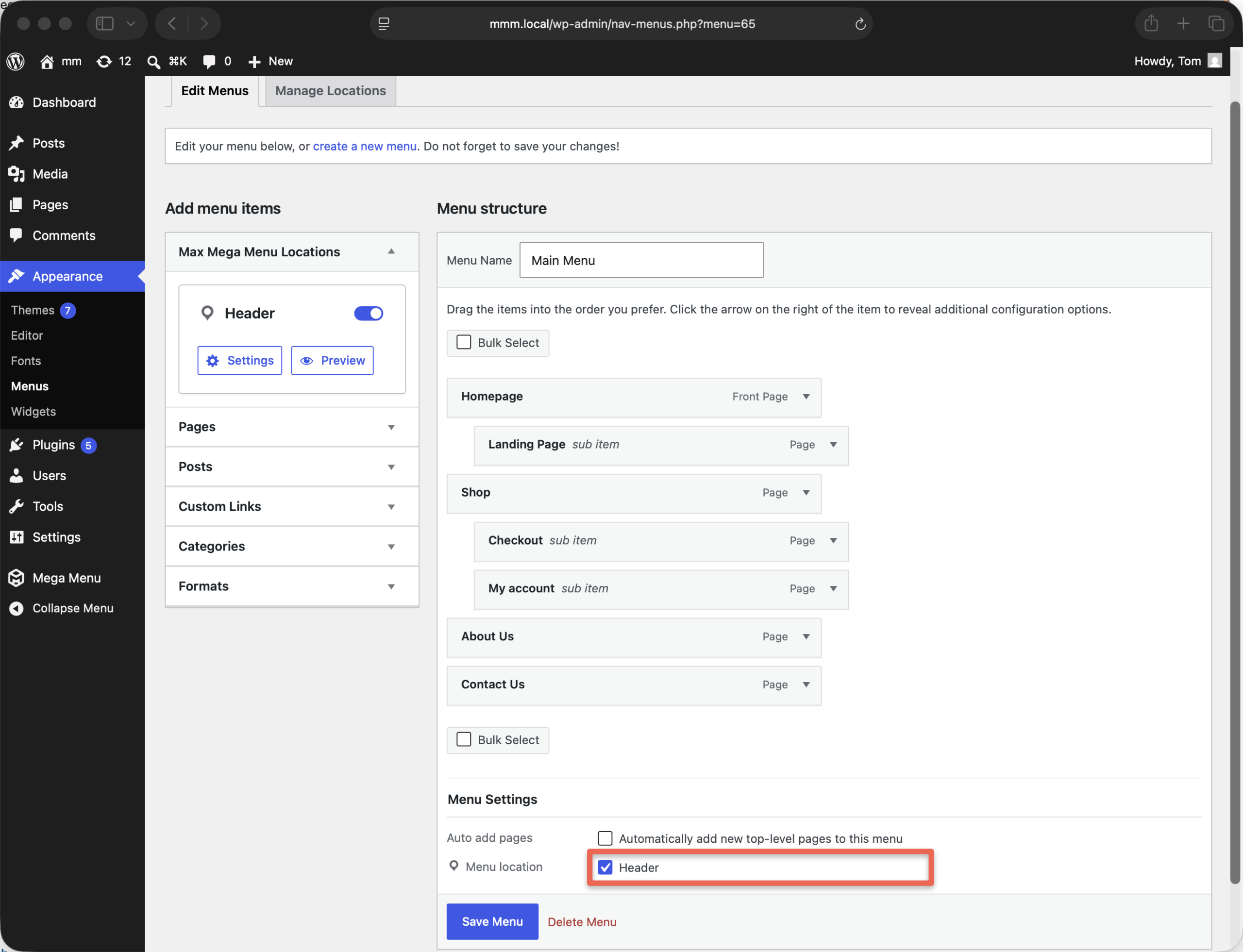
Now we have a Menu Location (Header) and a Menu (Main Menu) assigned to it.
Next we need to output the menu location on your site.
This step depends on your theme. If you’re using a block based theme, add a Max Mega Menu block to your header. If you’re using a classic theme you can either use Auto Integration (which enables Max Mega Menu for a pre-registered menu location), PHP code or the shortcode.
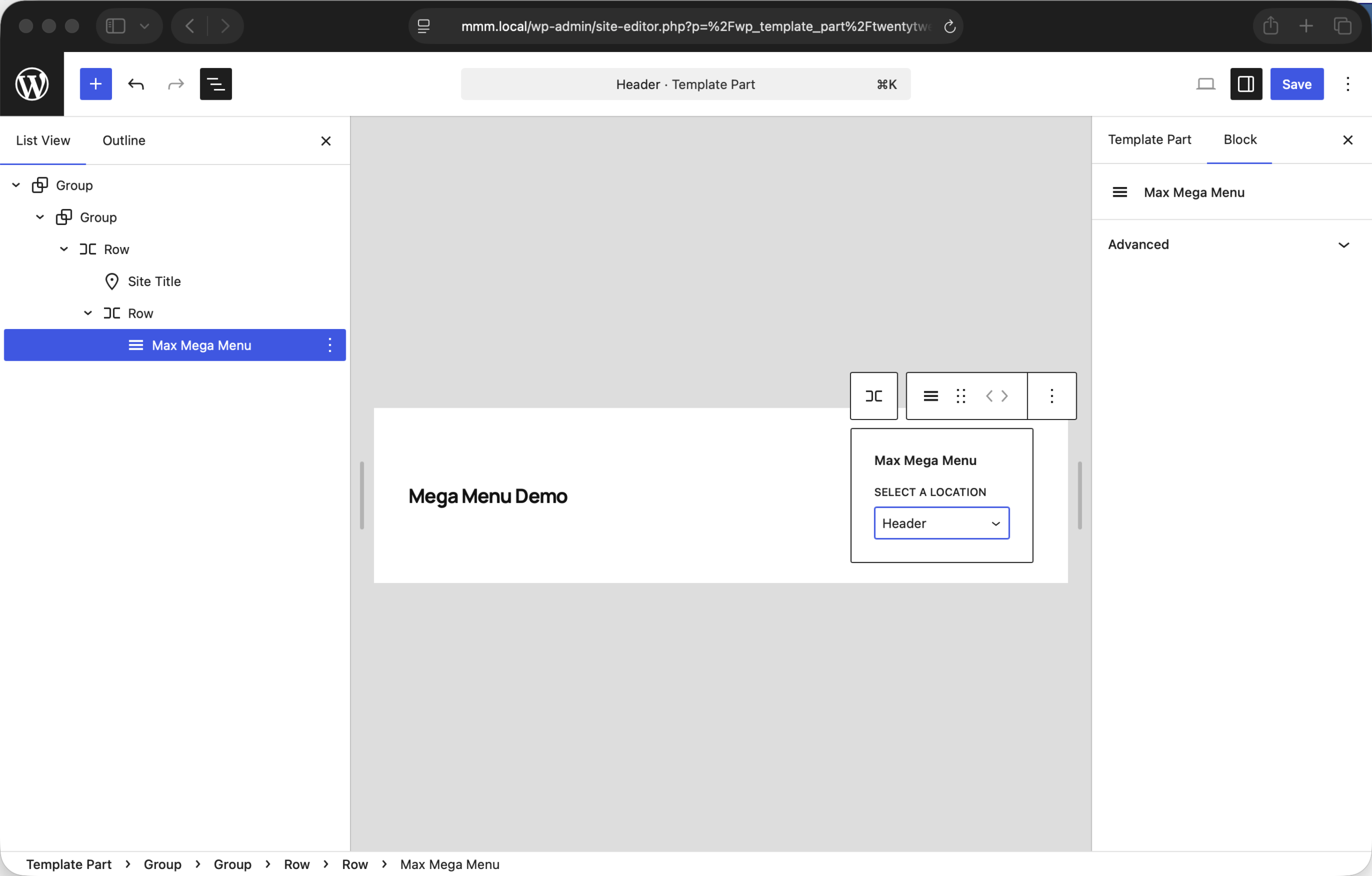
The basic setup for Max Mega Menu has been completed. Now the setup is complete, all menu management (adding menu items, creating sub menus etc) is completed on the Appearance > Menus page.
If your menu doesn’t look right, please check our Theme Integration page for instructions on getting Max Mega Menu working with your theme.
Next, lets take a look at the General Settings for the plugin.