Mega Menus
A Mega Menu is the name given to a large panel of content which is displayed below a menu item when the user clicks or hovers over the menu item. Mega Menus can contain sub menu items and Widgets.
Go to Appearance > Menus to manage your menu content.
Each item in your menu will display a blue ‘Mega Menu’ button when hovered over. Clicking this button will launch a panel containing all of the Mega Menu settings for this menu item.
Displaying Menu Items in a Mega Menu
By default, sub menu items will be displayed in a dropdown (Flyout) menu on your site.
To convert a Flyout menu to a Mega Menu, switch the Sub menu display mode from “Flyout Menu” to “Mega Menu – Grid Layout”. If present, sub menu items (Mammals, Reptiles, Birds) will be pre-populated in the first column of the Mega Menu editor. Use the + Column and + Row buttons to add columns and rows, the arrows next to each column’s width (e.g. 3/12) to resize it, and drag and drop items into position.
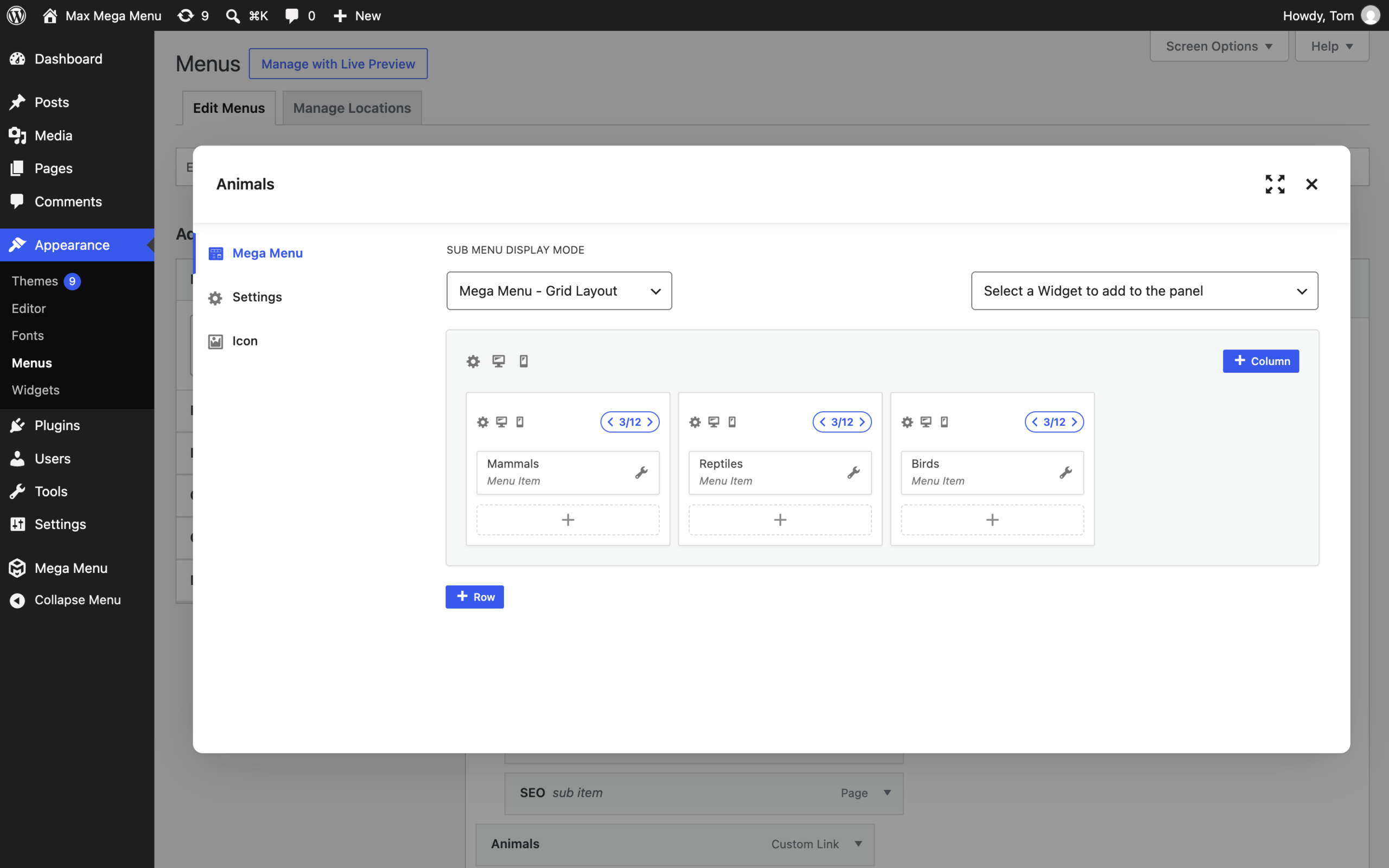
There is also a Mega Menu – Standard Layout option. Choose the number of columns for the panel, and your sub menu items and widgets will be laid out in order, each spanning a set number of those columns.
Displaying Widgets in a Mega Menu
Select a widget to add to a Mega Menu using the selector at the top right of the Mega Menu editor. The widget selector will list all of the widgets installed on your WordPress site. The widget will be added to the first column. You can also click the + at the bottom of a column to add a widget directly to that column. Click the wrench icon on a widget to edit its settings, then click Save.
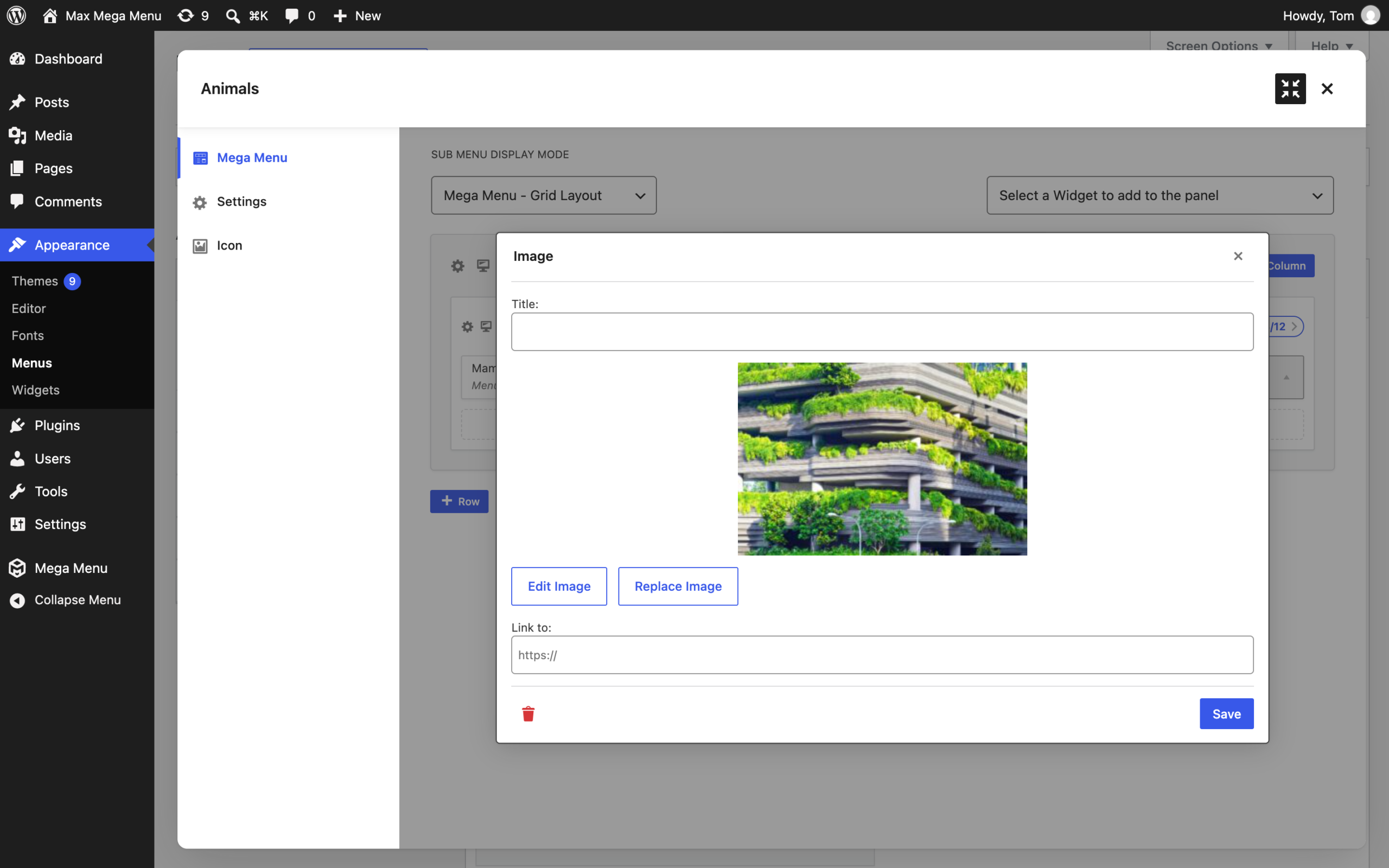
You can add any WordPress widget(s) to your sub menu, for example your latest WooCommerce products, a slider, images, custom HTML, social icons etc.
The Result (displaying a Widget alongside Menu Items in a mega menu)
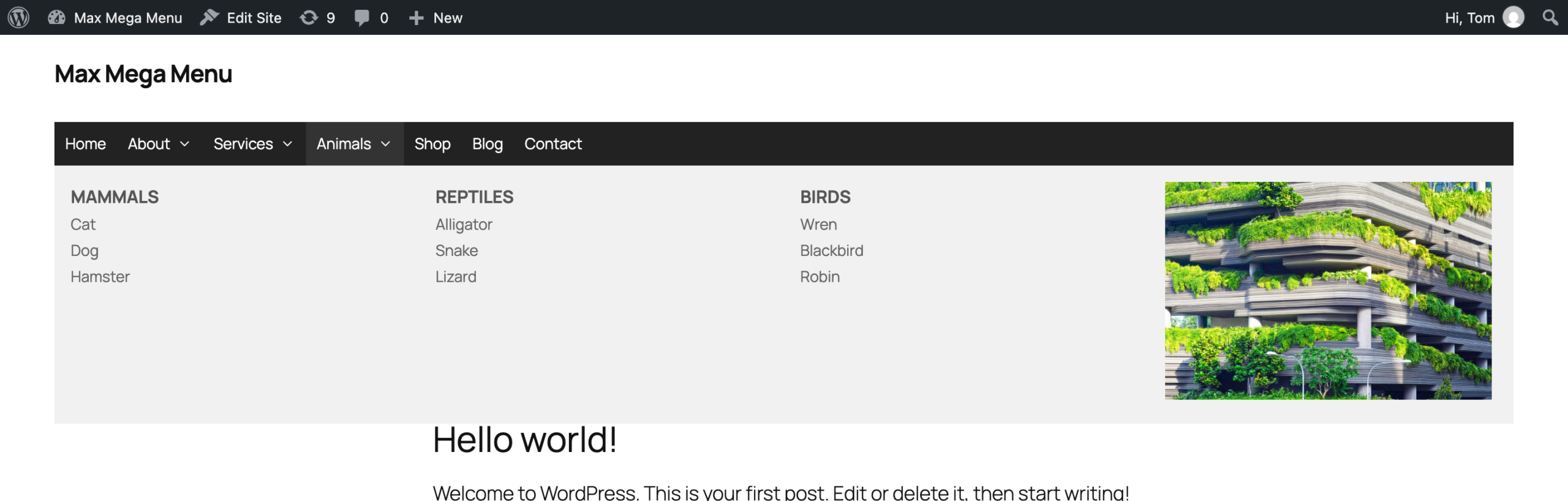
For the purposes of demonstration we are only showing a basic example here, but the Grid Layout editor allows great flexibility in creating complex layouts containing both menu items and widgets.