How to add a Logout Link to your menu
Adding a logout link to a menu in WordPress is not as easy as it sounds, as the WordPress logout URL is customised for each user. The logout URL has a “nonce” parameter which is unique to the logged in user. If the “nonce” is incorrect then the user will be redirected to a “Are you sure you want to do this?” page.
Therefore, we need to dynamically generate logout links, unique to the current user. This is possible using the Replacements functionality in Max Mega Menu Pro.
Step 1: Add a Custom Link to the menu
Go to Appearance > Menus, open the “Custom Links” section and add a new link with the text “Logout”:
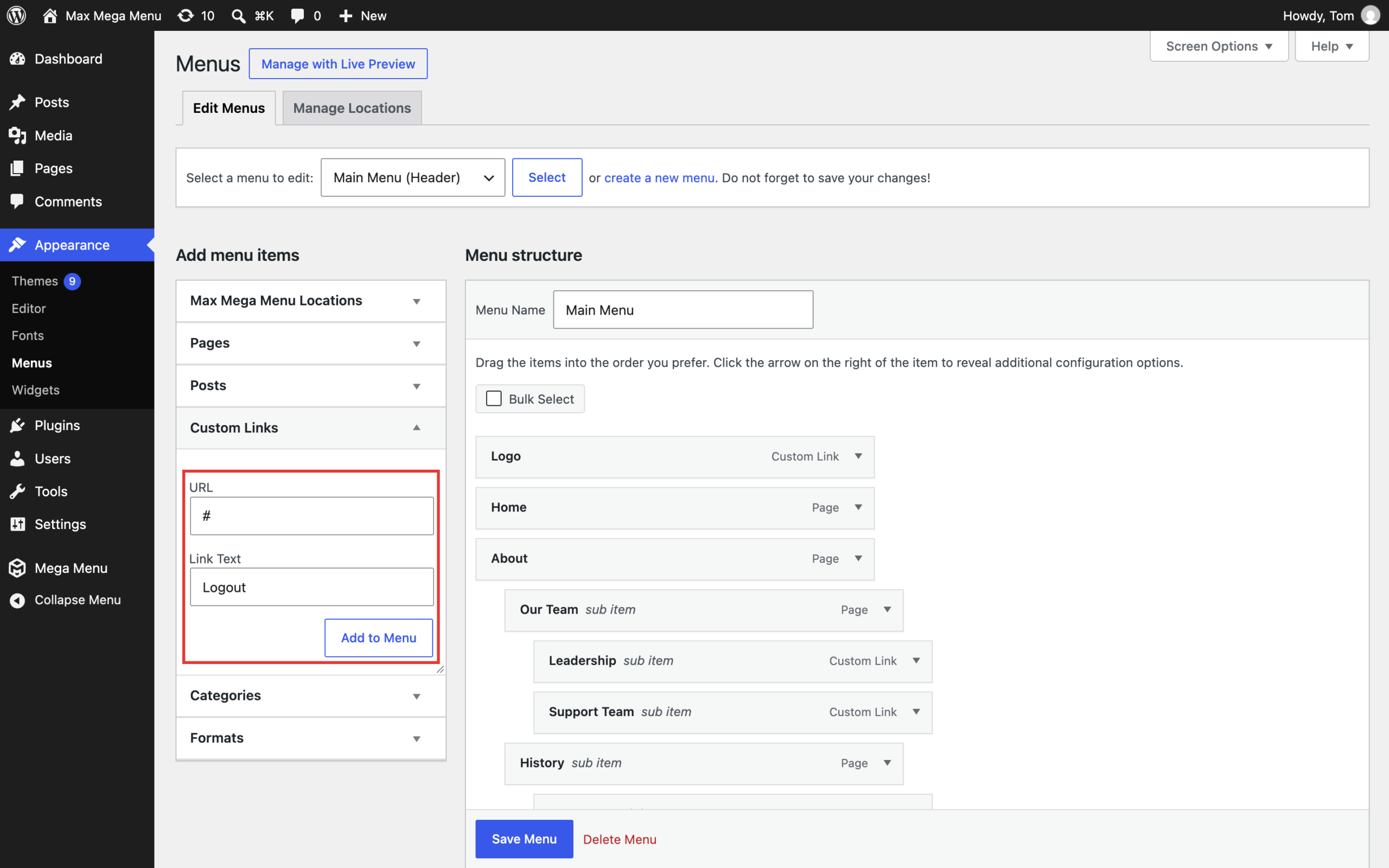
The URL is not important, we’ll use the replacements functionality to swap out the URL with a customised logout link further on.
Step 2: Replace the URL with a logout link
Once you’ve added the item to the menu, save the menu, then hover over the “Logout” item and click the blue Mega Menu button. Click the “Replacements” tab.
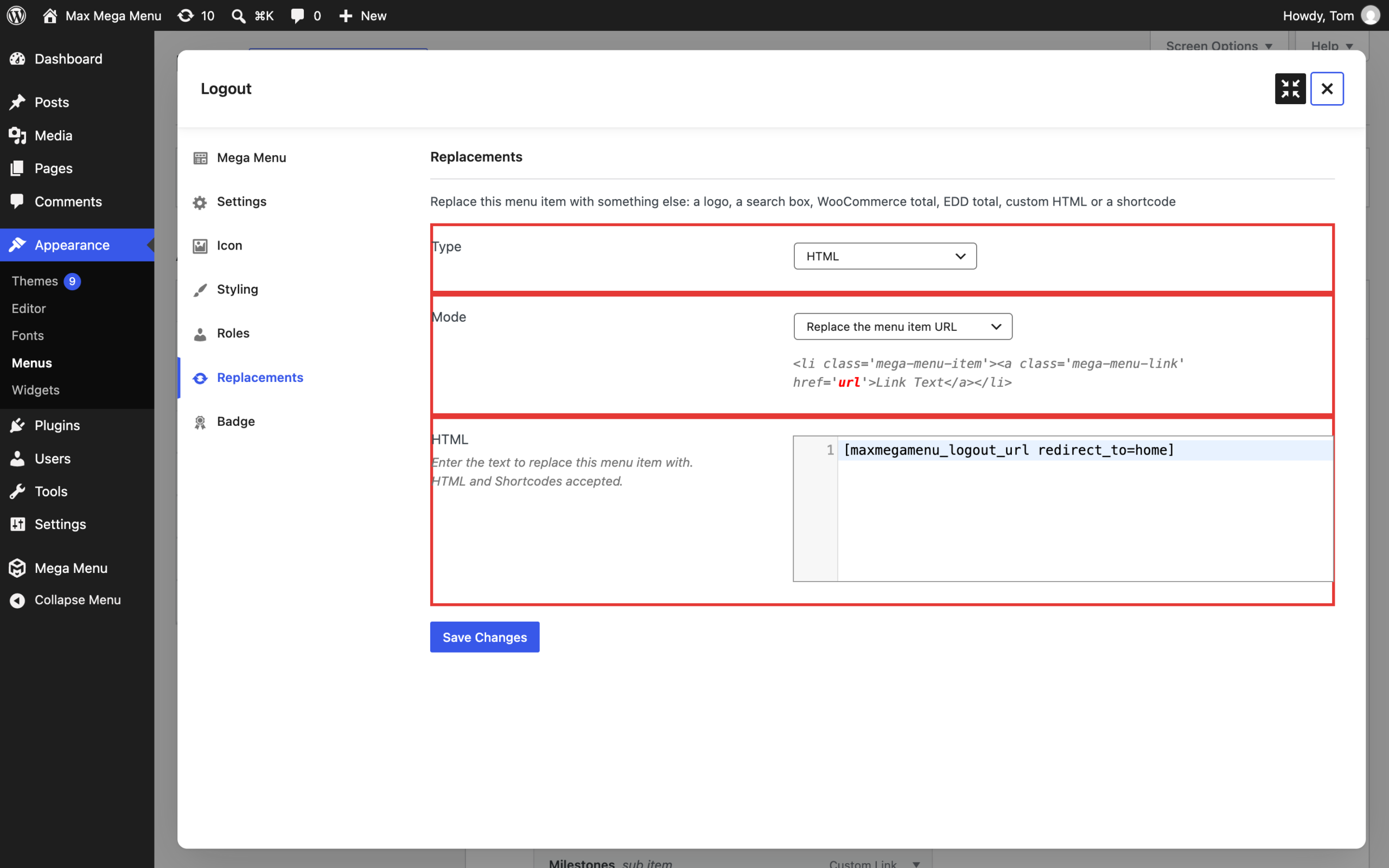
- Set the Type to “HTML”.
- Set the Mode to “Replace the menu item URL”.
- Set the HTML to:
[maxmegamenu_logout_url redirect_to=home] - Click “Save Changes”.
Making sure the Logout item is only visible to Logged in users
Click the “Roles” tab, set the Display Mode to “Logged In Users” and click “Save Changes”. See Roles & Restrictions for more information.
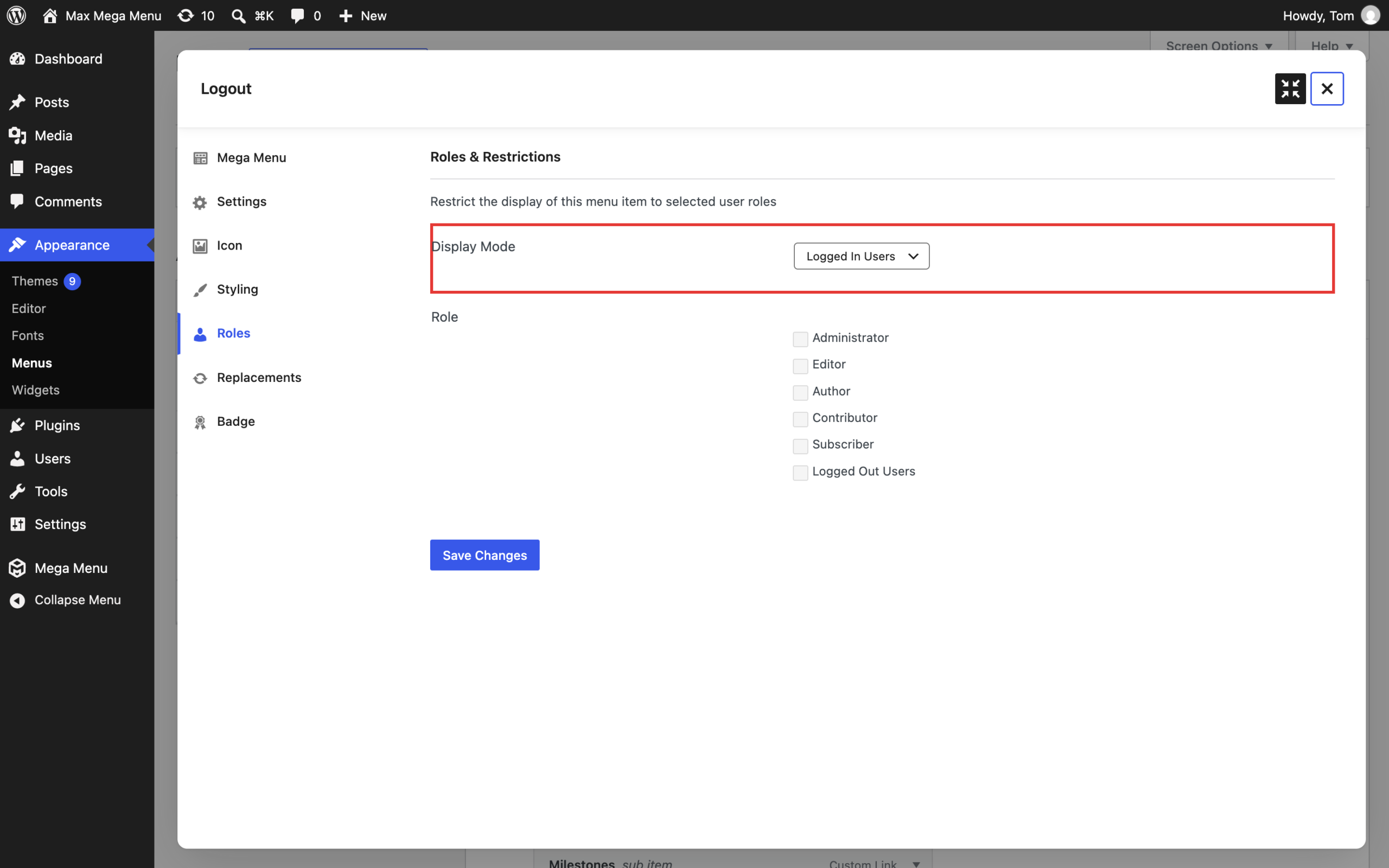
You’ll now have a dynamic logout link inside your menu, which is only visible to logged in users.