Breakdance
Max Mega Menu includes a native Max Mega Menu element for Breakdance, which can be used to display your mega menu within a Breakdance header (or any Breakdance layout).
Step 1: Set up a menu location
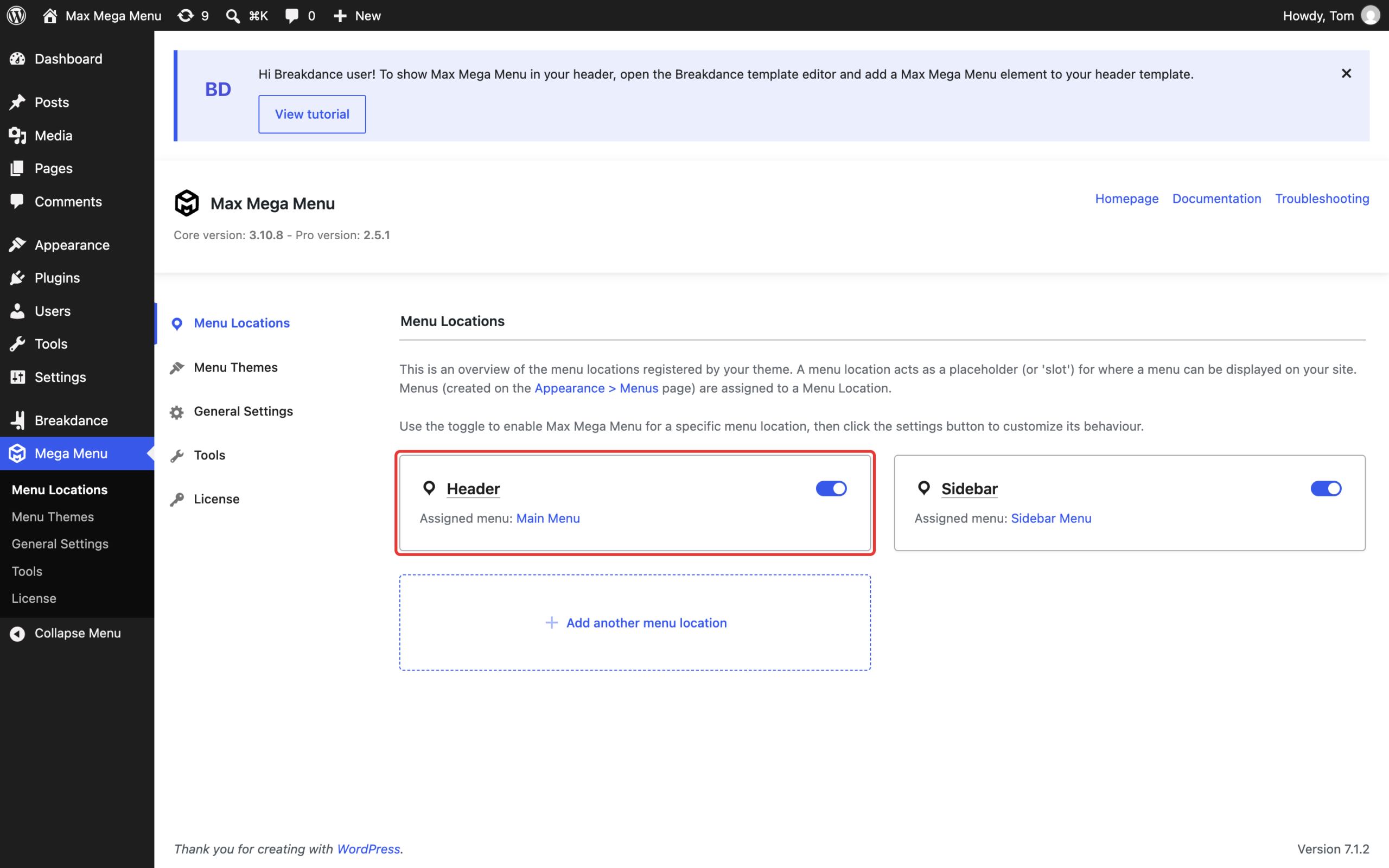
Go to Mega Menu > Menu Locations. Make sure Max Mega Menu is enabled for the location you want to display and that a menu is assigned to it. You can use an existing location, or click “Add another menu location” to create a new one (see Menu Location Settings).
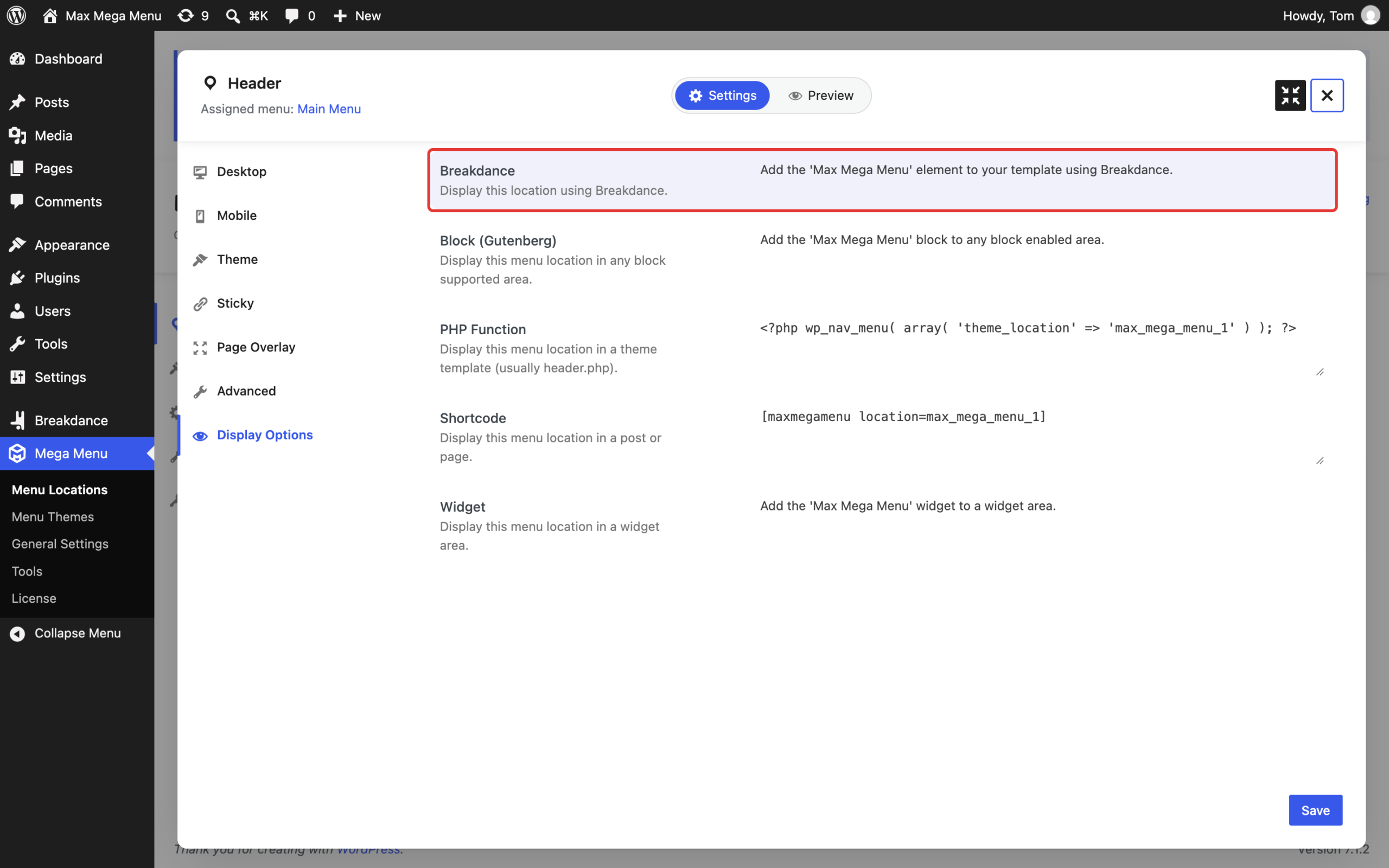
When Breakdance is active, the “Display Options” tab of each location’s settings will show a “Breakdance” option, confirming that the location can be added using Breakdance.
Step 2: Edit your header
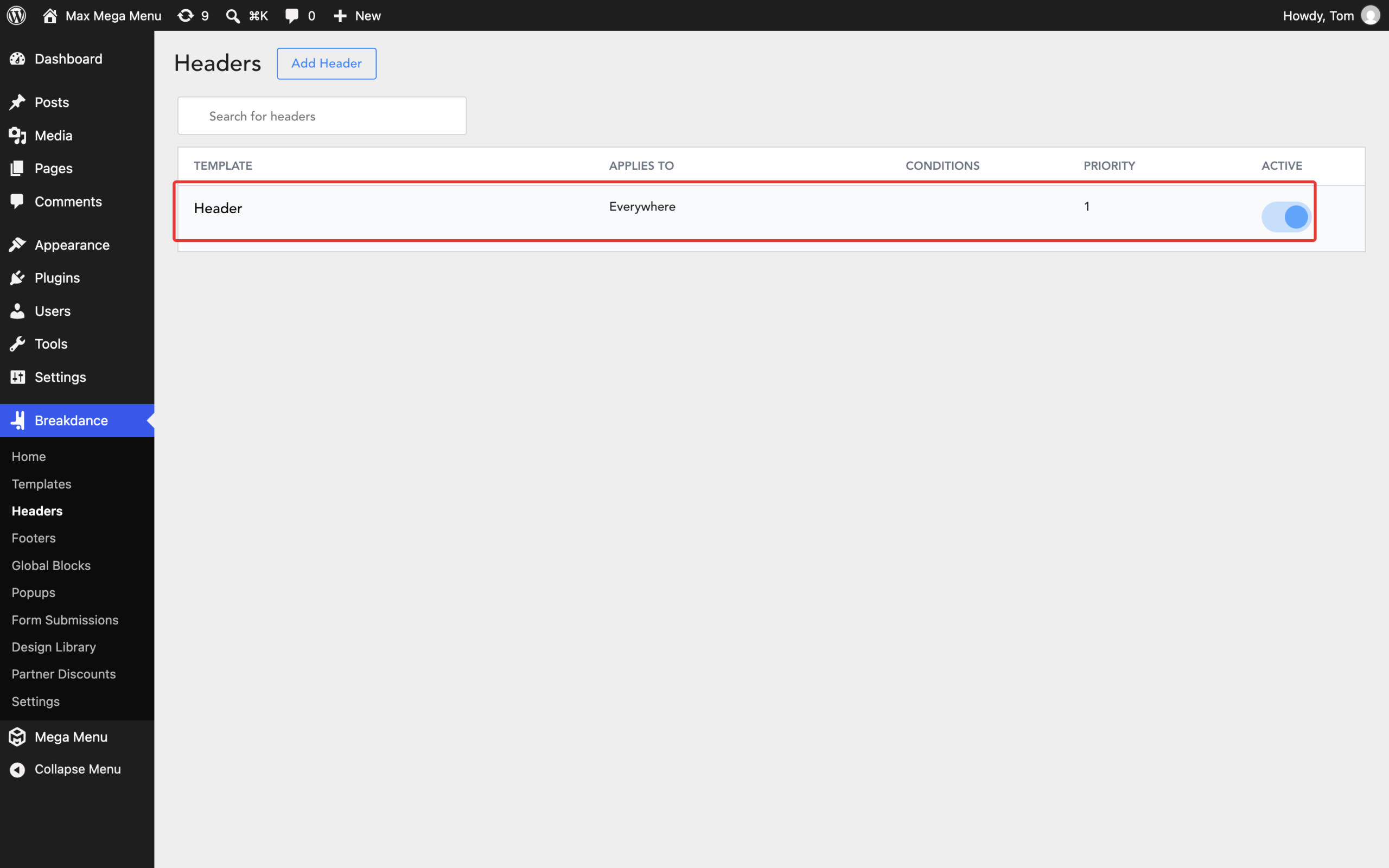
Go to Breakdance > Headers. Click “Add Header” to create a new header, or click your existing header to edit it in Breakdance.
Step 3: Add the Max Mega Menu element
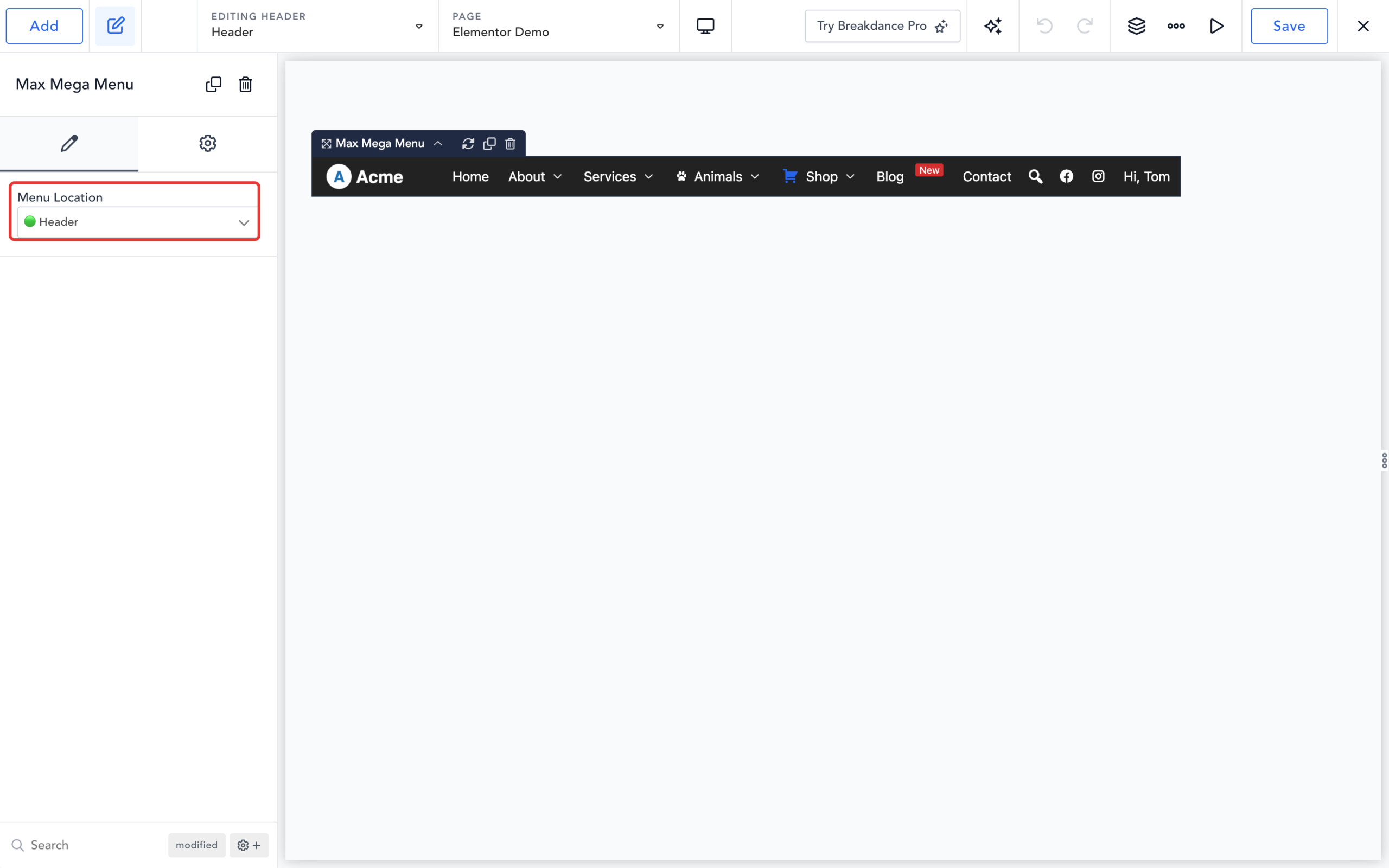
In the Breakdance builder, click “Add”, search for “Max Mega Menu” and drag the Max Mega Menu element into your header.
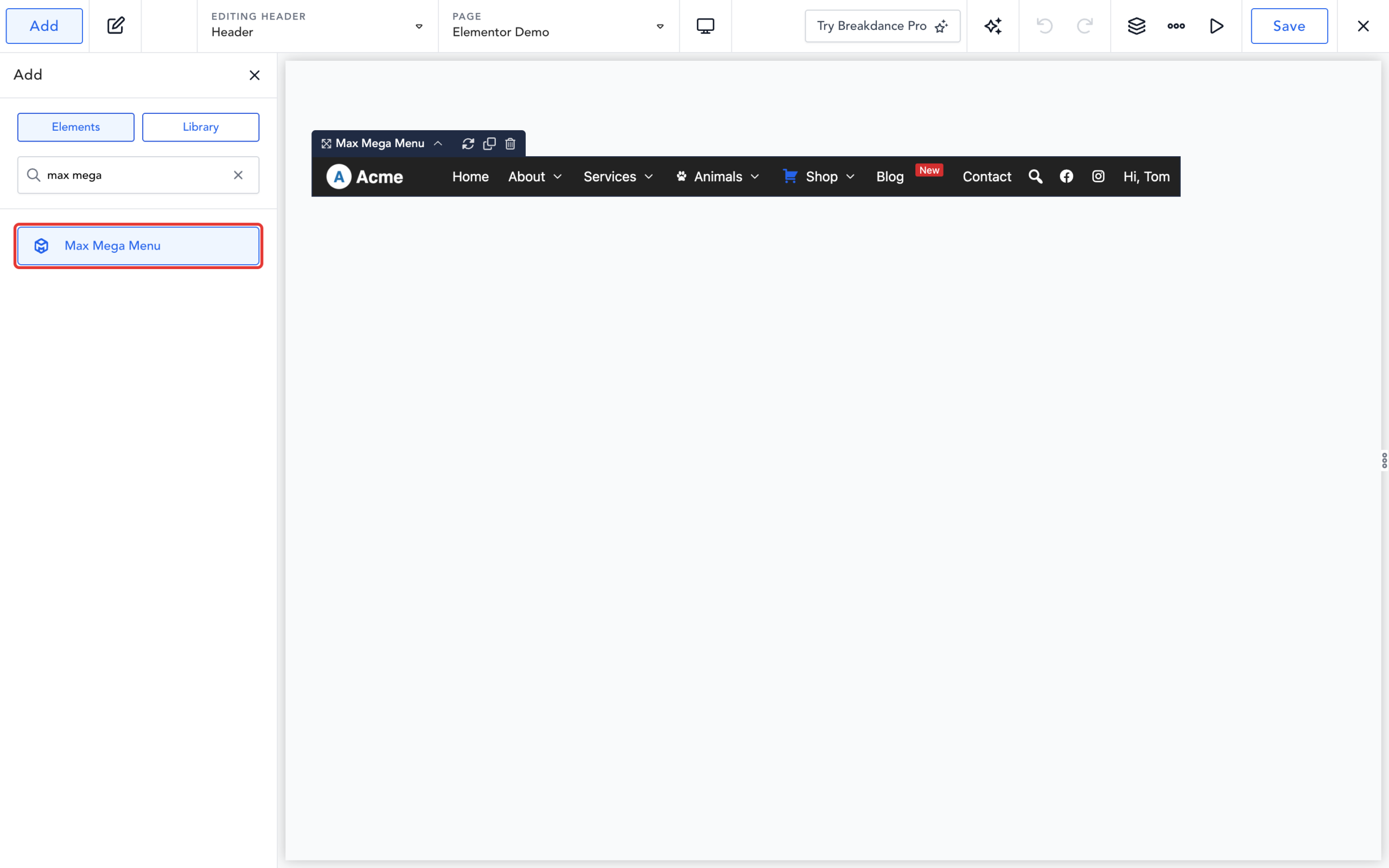
In the element settings, choose the menu location to display under “Menu Location”. The menu will be displayed in the builder immediately. Save the header.
End Result
Max Mega Menu is now displayed in your Breakdance header.
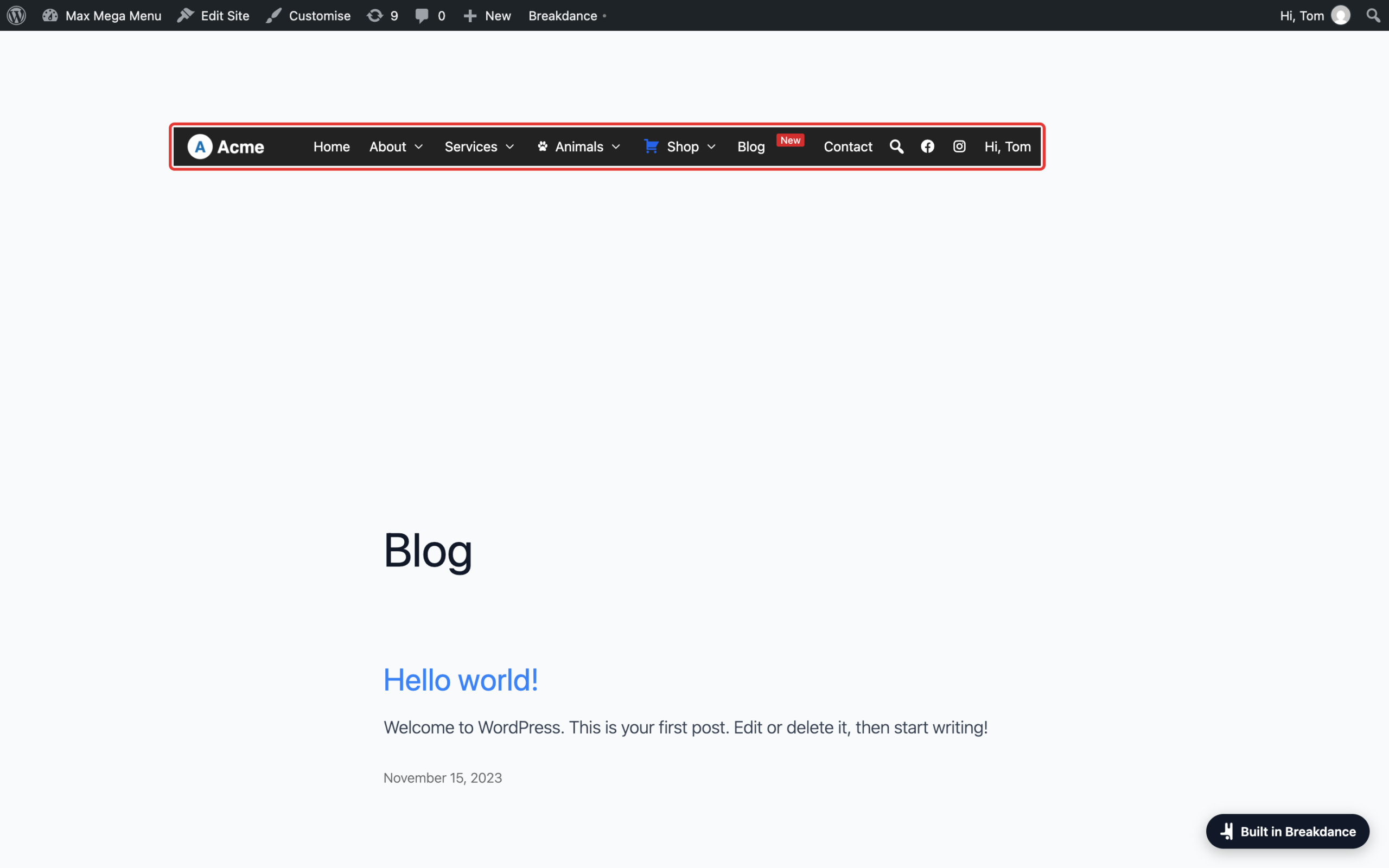
From here you can build the menu out, including changing the styling, adding a logo, a search box, custom icons etc.