Replacements is a Max Mega Menu Pro feature that swaps a menu item for something else: a logo, a search box, a cart total, a user’s avatar, or your own HTML and shortcodes. You add an ordinary menu item, then tell Max Mega Menu what to show in its place.
It’s how most of the extras in a typical header are built: the logo on the left, the search icon and the basket total on the right, a “Hi, [name]” greeting and a logout link.
How to replace a menu item
- Go to Appearance > Menus and add a Custom Link to your menu where the replacement should appear. The URL and link text don’t matter for most replacement types, so something like
#and “Search” is fine. Save the menu. - Hover over the new item and click the blue Mega Menu button to open its menu item settings.
- Open the Replacements tab and choose a Type. The options for that type appear below it.
- Fill in the options and click Save.
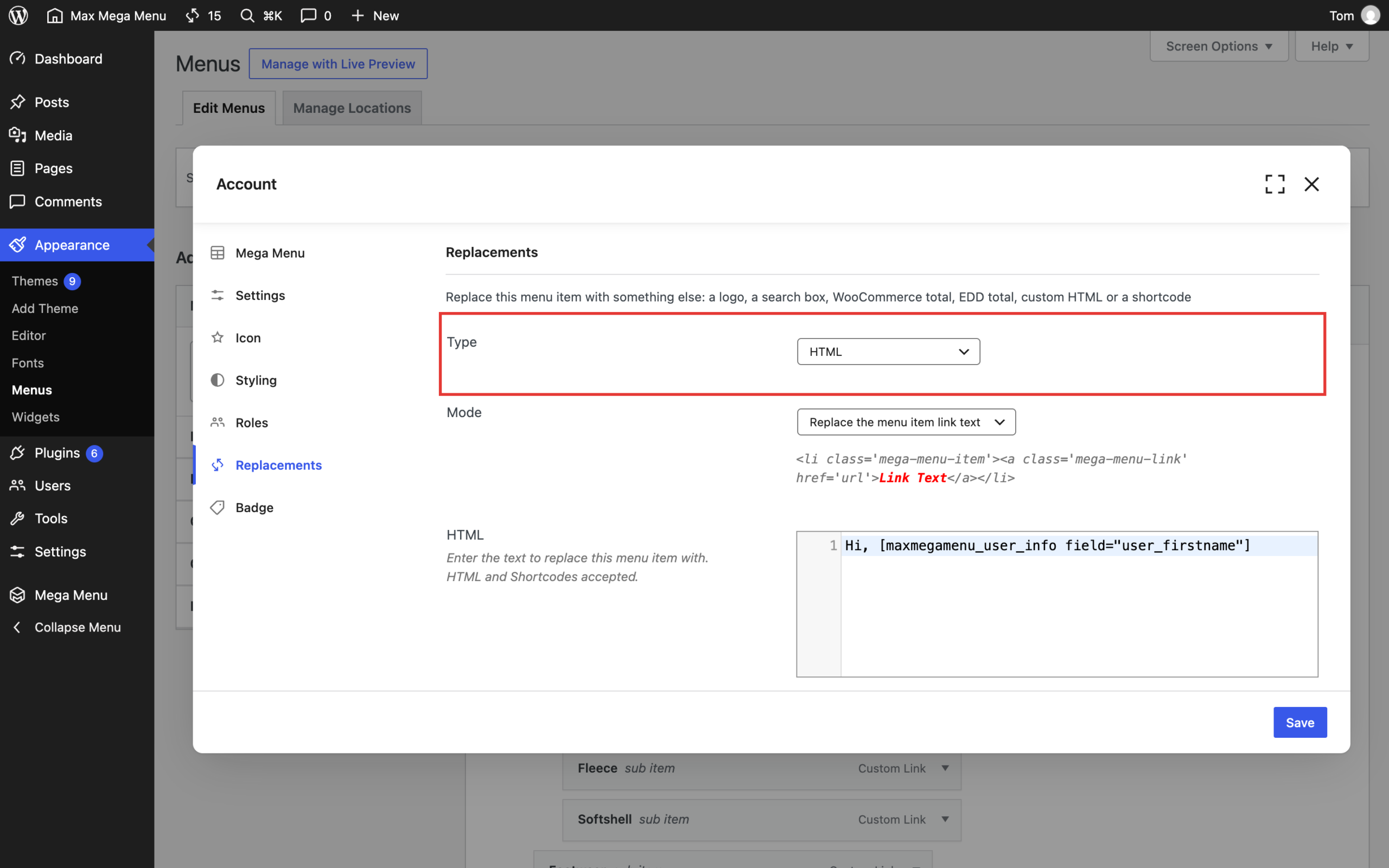
To turn a replacement off again, set the Type back to Disabled. The menu item goes back to being a normal link.
Replacement types
| Type | What it shows |
|---|---|
| Logo | An image from your media library, sized for the menu bar, with a 2x version for retina screens. See Menu Logo. |
| Search box | A search icon that expands into a search box, or a search box that’s always open. See Search Box. |
| HTML | Your own HTML, text or shortcodes, in place of the item’s text, the whole item or just its URL. See HTML replacements below. |
| WooCommerce Cart Total | The value of the visitor’s cart, for example £24.99. It updates as products are added, without reloading the page. See WooCommerce Cart. |
| WooCommerce Cart Count | The number of items in the visitor’s cart. |
| EDD Cart Total | The value of the visitor’s Easy Digital Downloads cart. |
| EDD Cart Count | The number of items in the visitor’s Easy Digital Downloads cart. |
| BuddyPress Avatar | The logged in user’s avatar. |
| BuddyPress Notifications | The logged in user’s number of unread BuddyPress notifications. |
The cart, count and BuddyPress types replace the item’s text and keep everything else, so the item still links where you pointed it and keeps any menu icon you’ve given it. A basket icon on a WooCommerce Cart Total item linking to your cart page makes a neat cart button.
HTML replacements
The HTML type takes any text, HTML or shortcode. Its Mode setting decides how much of the menu item it replaces:
| Mode | What happens | Use it for |
|---|---|---|
| Replace the menu item link text | Only the text changes. The link, icon and styling stay. | A personalised label, such as Hi, [maxmegamenu_user_info] |
| Replace the whole menu item link | The whole link is replaced with your HTML. You’re in full control of the markup. | Buttons, phone numbers, embedded forms, or a shortcode that outputs its own link |
| Replace the menu item URL | Only the link’s address changes. The text, icon and styling stay. | Links that need working out on each page view, such as a logout link: [maxmegamenu_logout_url] |
For example, to add a “Log out” item that returns the visitor to the page they were on, add a Custom Link labelled “Log out”, choose the HTML type, set the mode to Replace the menu item URL and enter [maxmegamenu_logout_url]. There’s a step-by-step guide in How to add a Logout Link to your menu. To show it only to logged in visitors, use Roles & Restrictions.
Shortcodes you can use
Max Mega Menu Pro adds these shortcodes for use in HTML replacements. Any other shortcode on your site works too.
| Shortcode | Output |
|---|---|
[maxmegamenu_logout_url] | A logout URL. Add redirect_to="home" to send the visitor to the home page afterwards. By default they return to the page they were on. |
[maxmegamenu_user_info] | The logged in user’s display name. Use field="user_firstname", "user_lastname", "user_email" or "ID" for other details. |
[maxmegamenu_user_gravatar] | The logged in user’s Gravatar. Options: size="25" (pixels) and default="mp" (the image shown when the user has no Gravatar). |
[maxmegamenu_woo_cart_total] | The WooCommerce cart total. |
[maxmegamenu_woo_cart_count] | The number of items in the WooCommerce cart. |
[maxmegamenu_edd_cart_total] | The Easy Digital Downloads cart total. |
[maxmegamenu_edd_cart_count] | The number of items in the Easy Digital Downloads cart. |
[maxmegamenu_buddypress_avatar] | The logged in user’s BuddyPress avatar. Option: size="50" (pixels). |
[maxmegamenu_buddypress_notifications] | The logged in user’s number of unread BuddyPress notifications. |
Tips
- Positioning: replaced items sit in the menu bar like any other item. Use Menu item align on the item’s Settings tab to move one to the right of the menu bar, as in a typical header with the logo on the left and search and cart on the right. See Menu Item Options.
- Mobile: a replaced item also appears in the mobile menu. To hide it there, turn on Hide item on mobile on the Settings tab. For a logo or search box that’s always visible on phones, add it to the mobile toggle bar instead with Mobile Toggle Blocks.
- Styling: style a replaced item like any other, with Custom Item Styling or your menu theme’s settings.