Page Overlay
The Page Overlay dims the rest of the page while your menu is in use. It draws the eye to an open sub menu and makes it easier to read when it opens over busy page content, such as images or sliders.
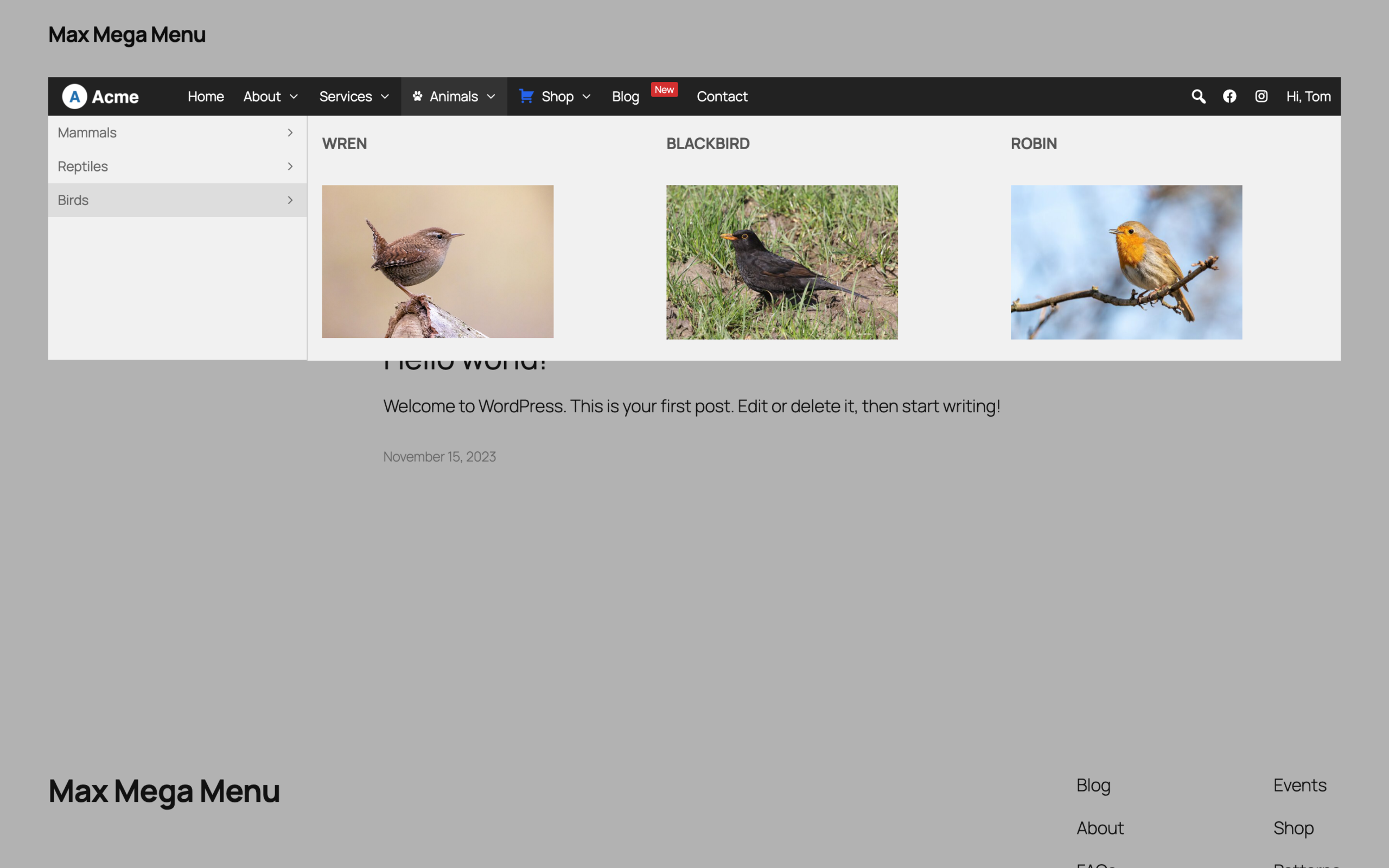
Enabling the Page Overlay
Go to Mega Menu > Menu Locations, open the settings for your menu location and click the Page Overlay tab. Turn on Desktop, Mobile or both, then click Save.
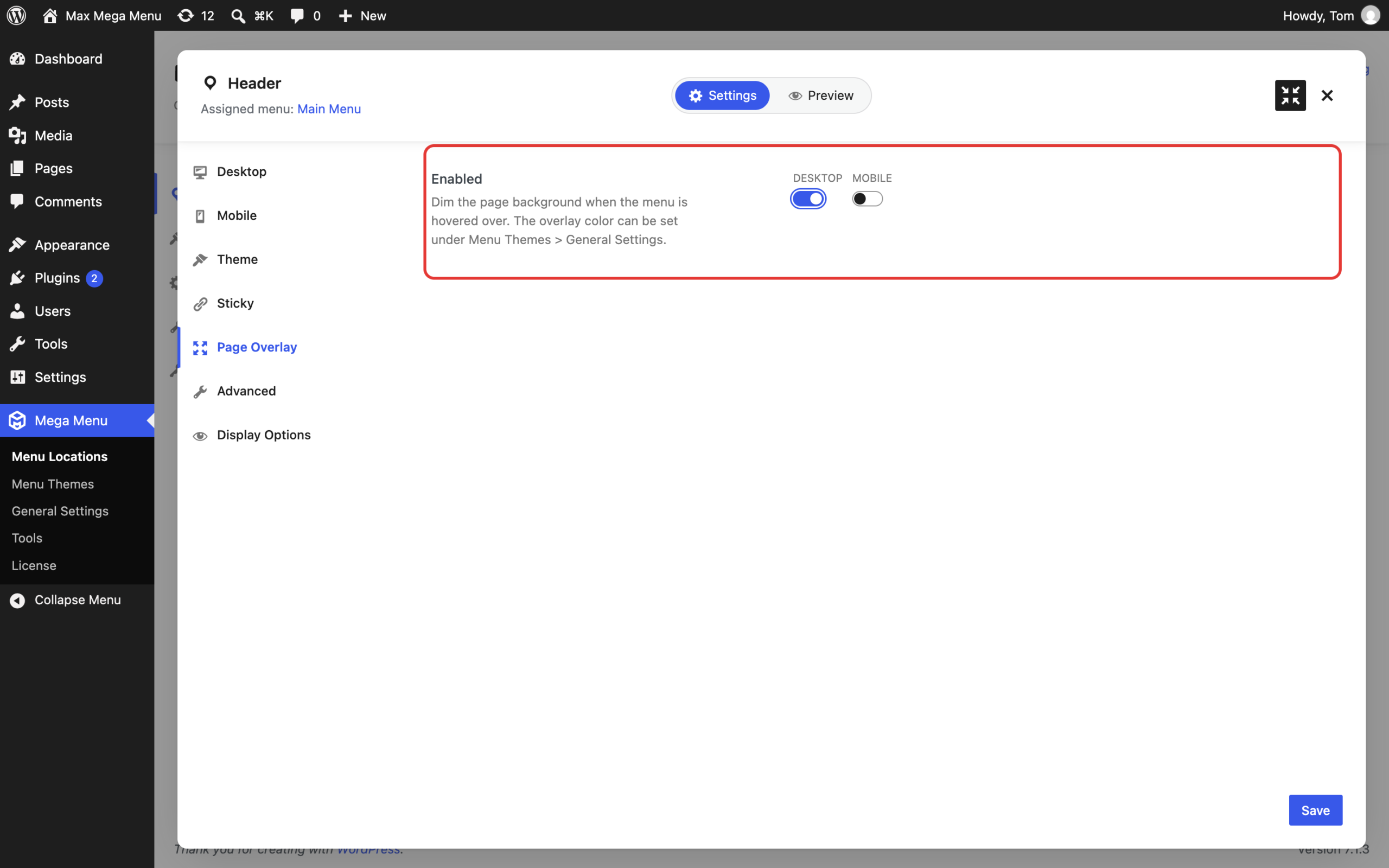
Desktop
The page is dimmed while the user hovers over the menu, opens a sub menu or moves through the menu using the keyboard.
Mobile
The page is dimmed while the mobile menu or one of its sub menus is open. Off Canvas mobile menus already darken the page behind the menu, so this option is most useful with the Show / Hide and Slide Down mobile menu types.
Changing the overlay colour
The overlay colour is part of your menu theme. Go to Mega Menu > Menu Themes, select your menu theme and open the General Settings tab of the Theme Editor. Set the colour under Page Overlay, then click Save.
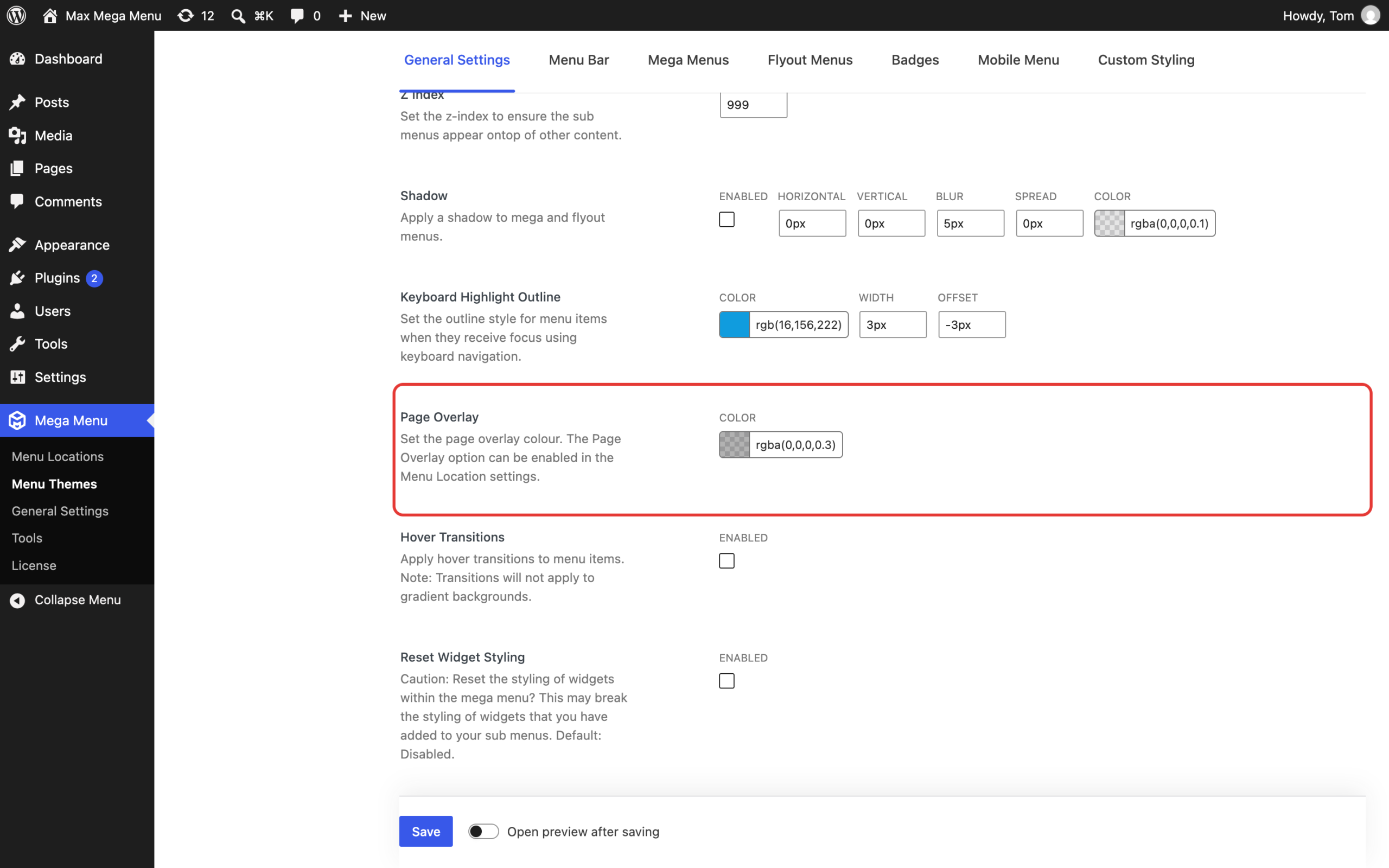
The default is rgba(0,0,0,0.3): black at 30% opacity. Choose a colour with some transparency so that the page remains visible underneath the overlay.
Like what you see? This functionality is available in Max Mega Menu Pro