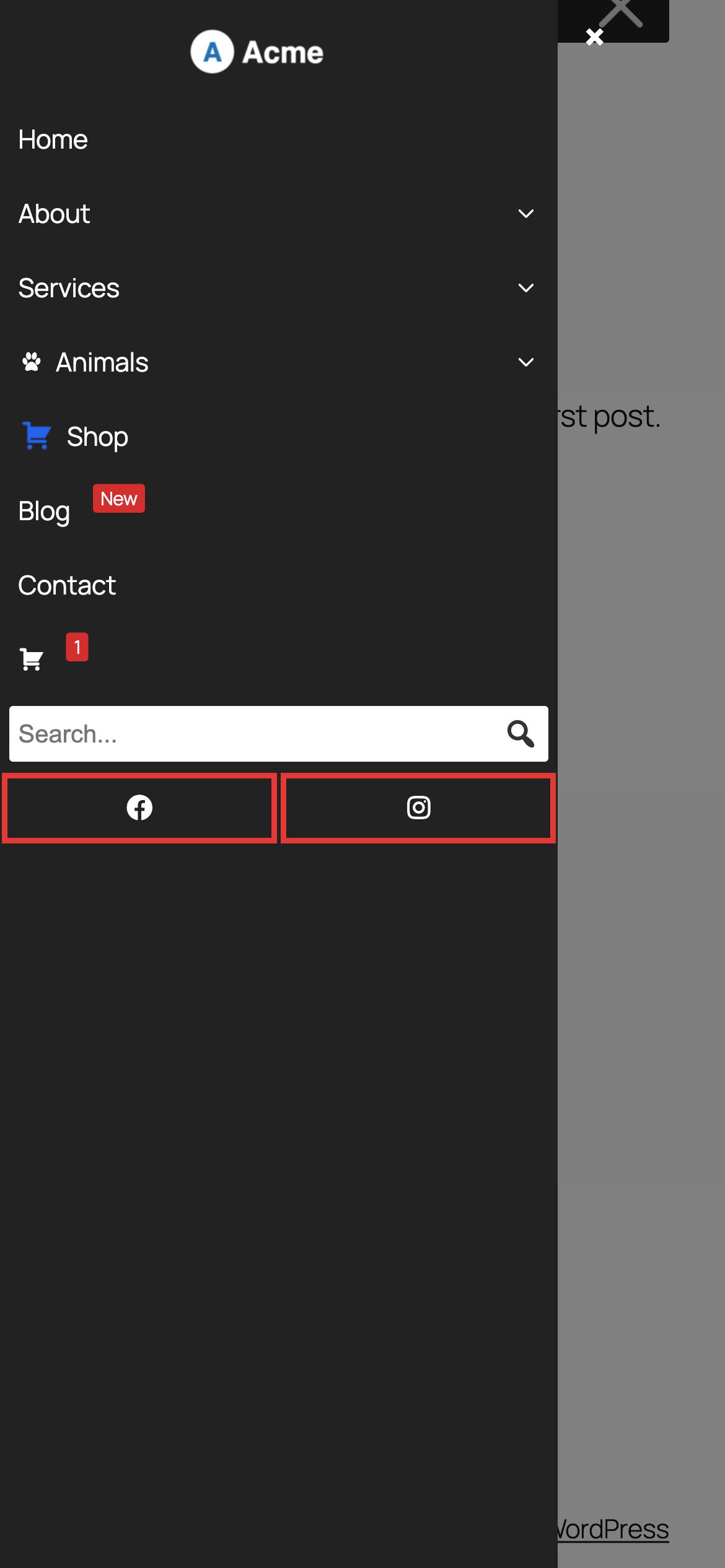
Step 1. Add a new Custom Link to your menu
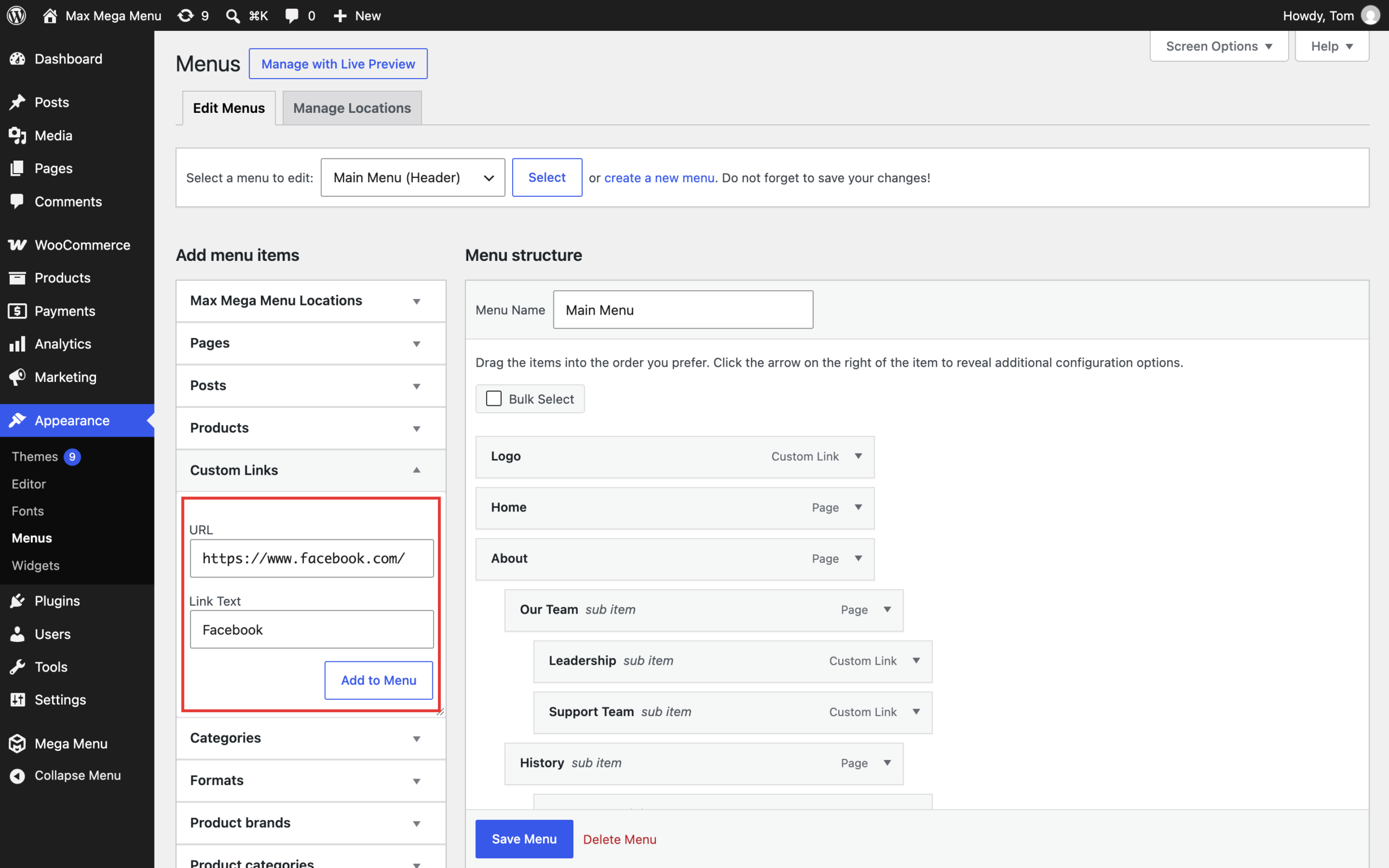
Save the menu once the link has been added.
Step 2: Open the Mega Menu settings for the new menu item
Hover over the new menu item and click the blue “Mega Menu” button.
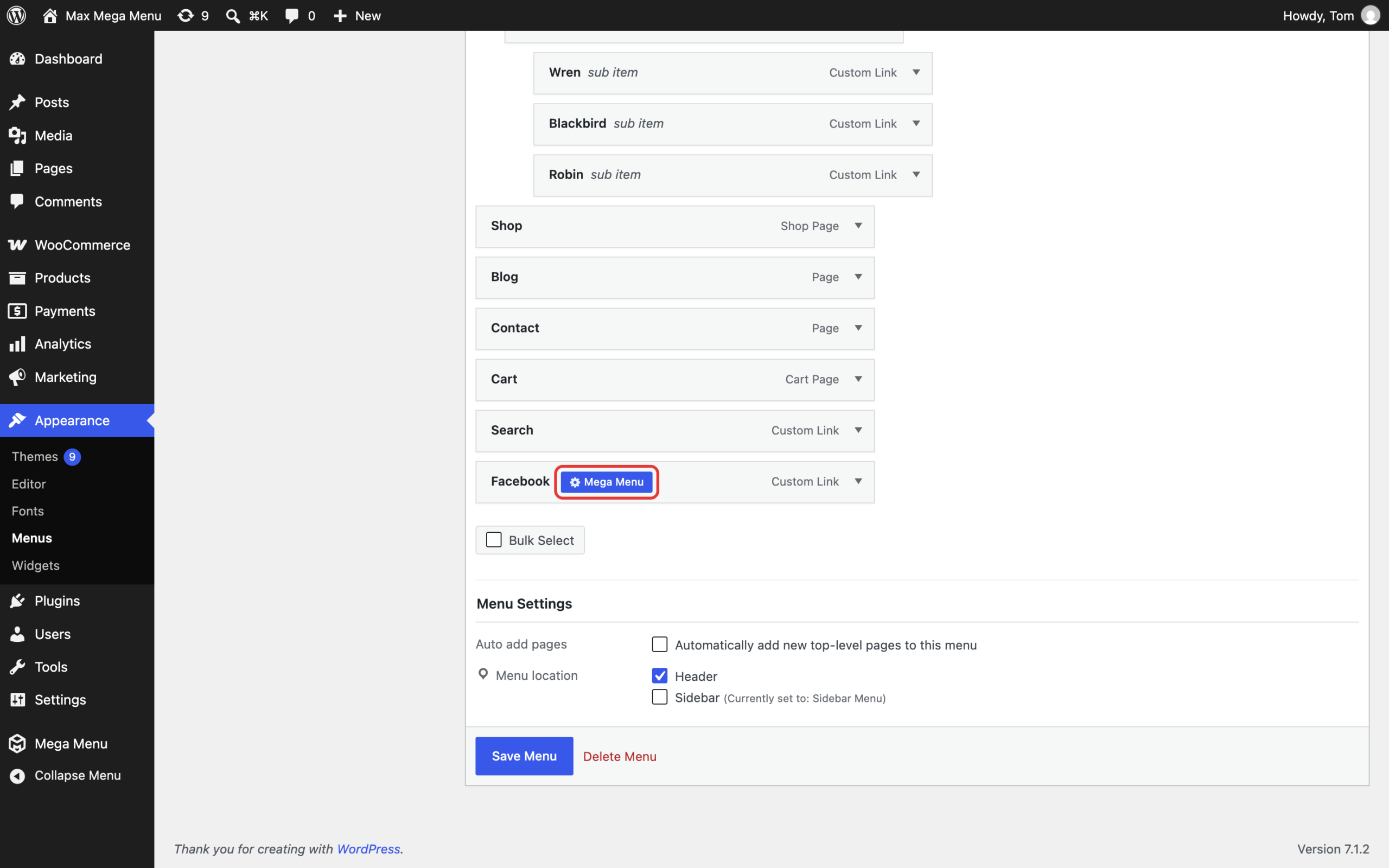
Step 3: Align the menu item to the right and hide the menu text
On the Settings tab, enable “Hide text” and set “Menu item align” to “Right”. See Menu Item Options for details of the other available settings.
Step 4: Set an icon
On the Icon tab, search for “facebook” and select an icon. Dashicons are included in the free version of Max Mega Menu, while Font Awesome 6 and Genericons are available in Max Mega Menu Pro. See Menu Icons for more information.
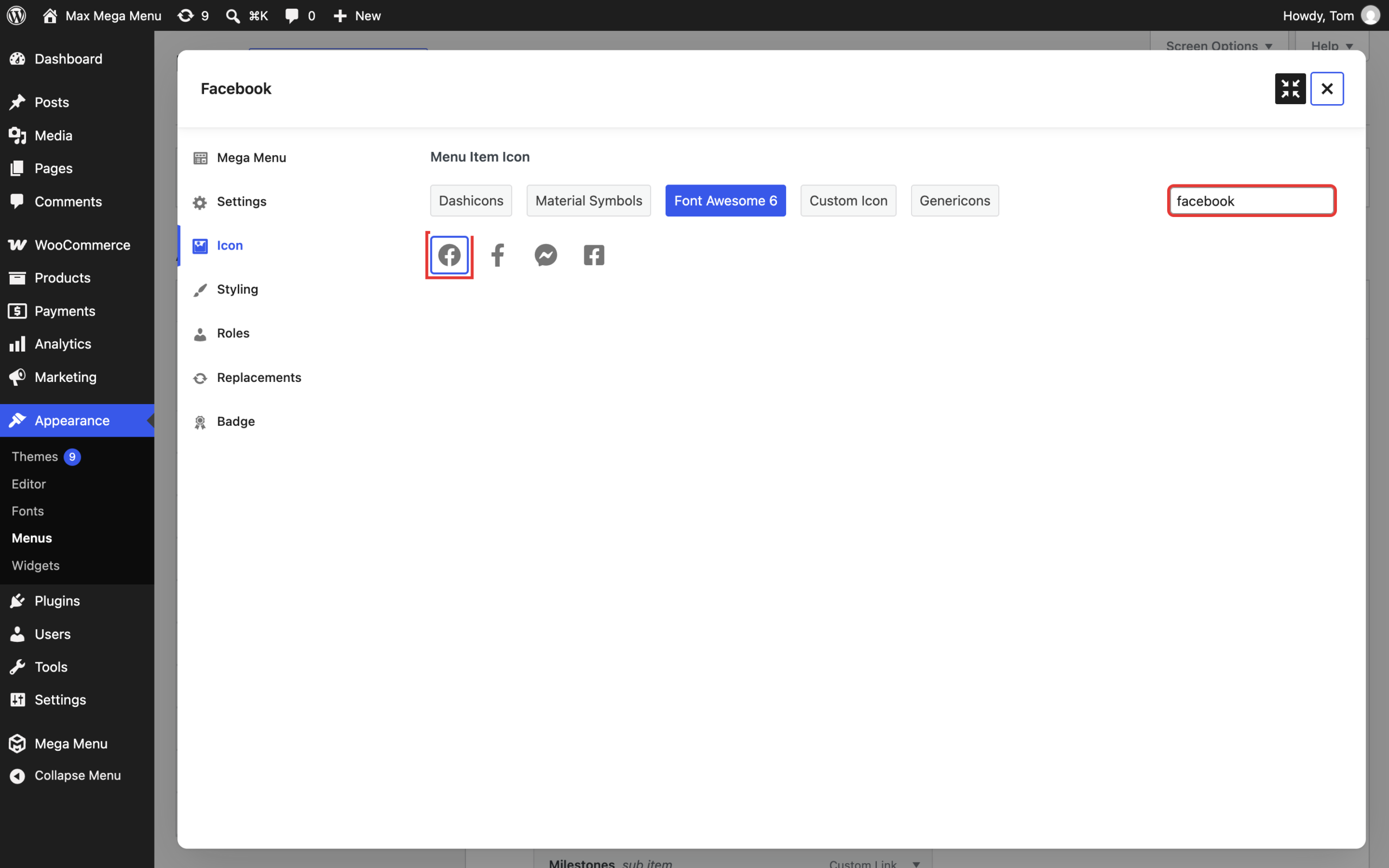
Step 5: Optional step for Max Mega Menu Pro users.
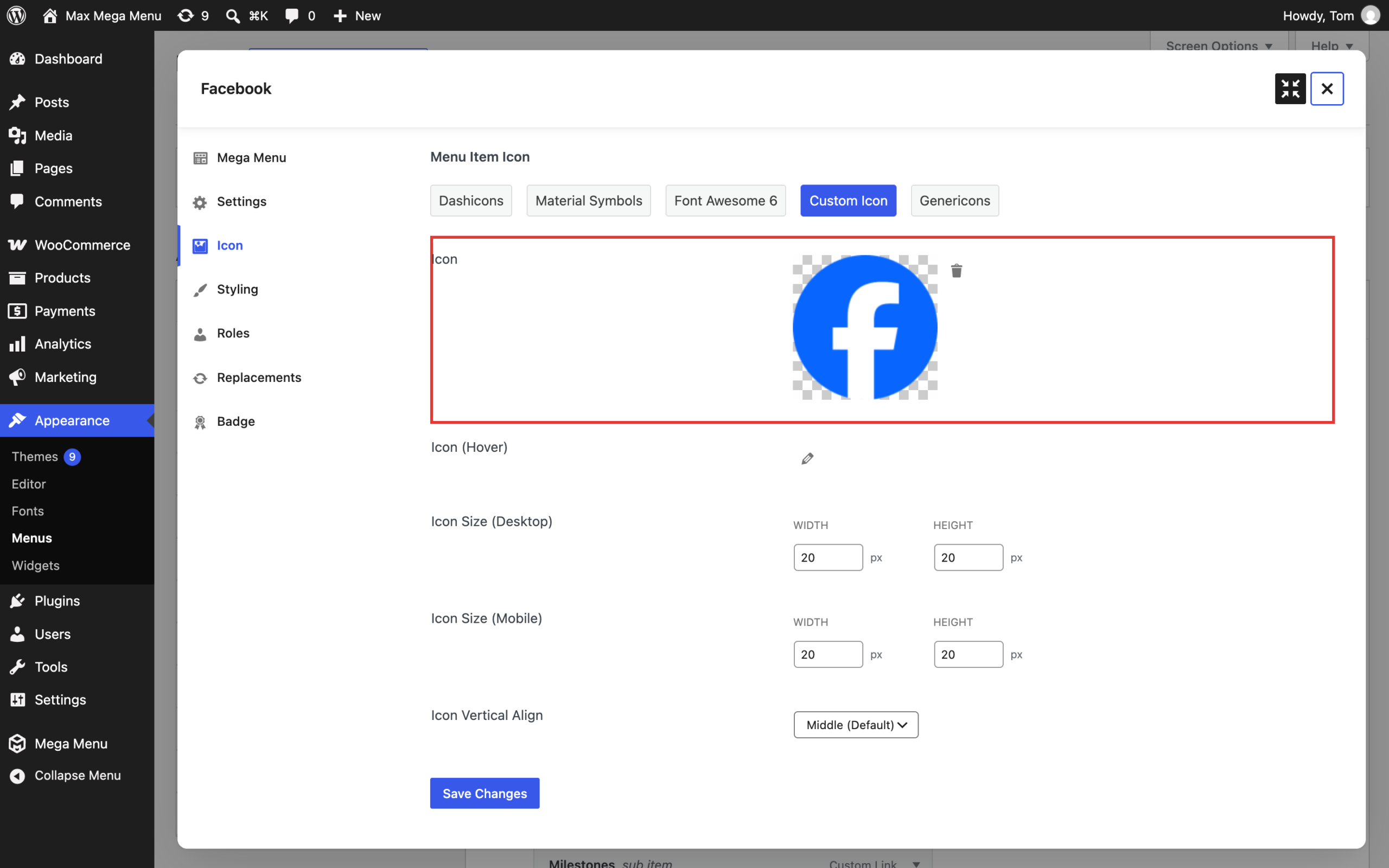
Upload your own image (such as the official Facebook logo) on the Icon > Custom Icon tab. See Custom Icons for more information.
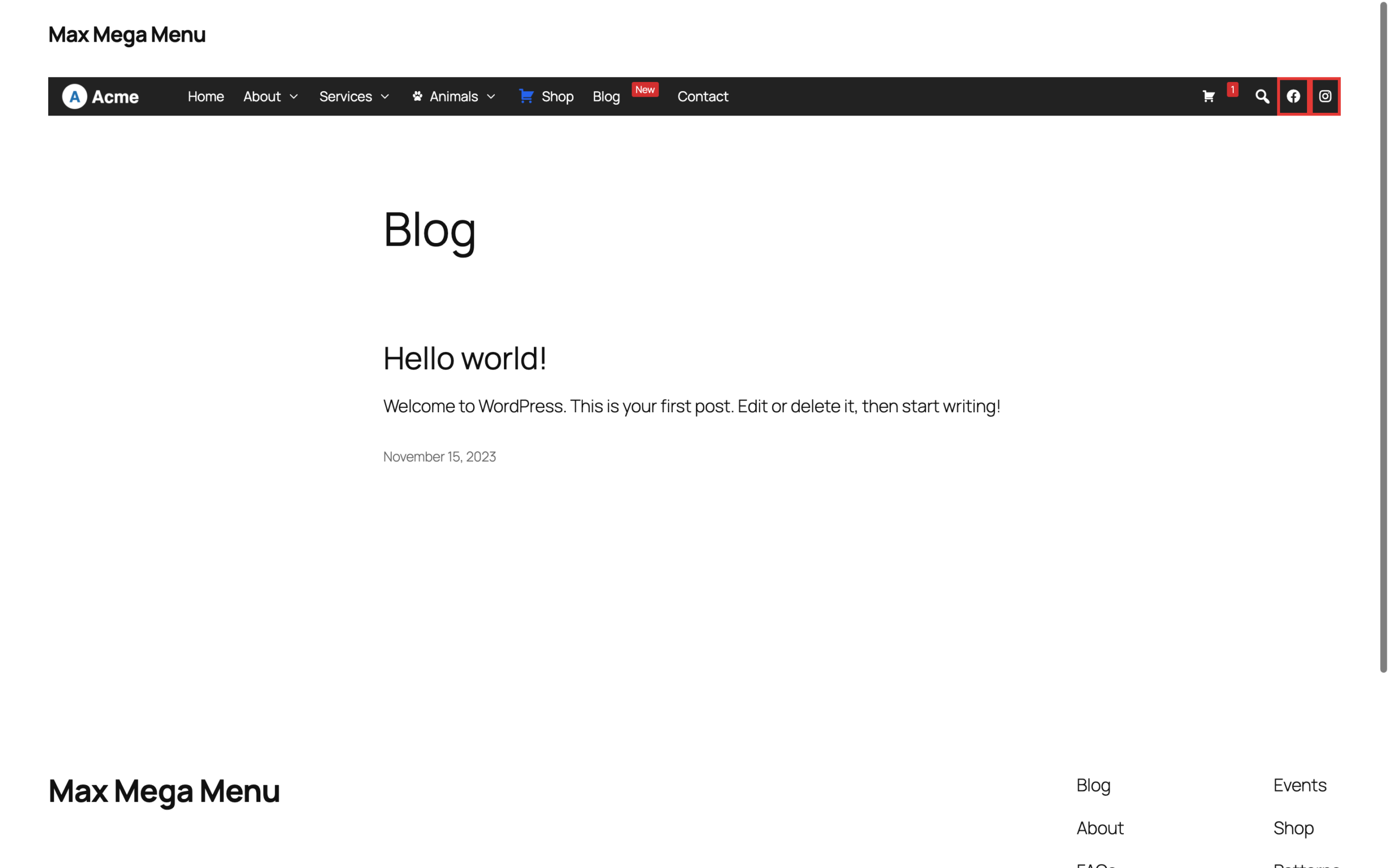
End Result:
Displaying social icons on a single line in the Mobile Menu
By default each social icon/menu item will be displayed on its own row in the mobile menu.
There are 2 options to change this.
Option 1
Enable the “Hide item on mobile” setting (Menu Item Options) for each of your social icon menu items, then add them as Mobile Toggle Blocks instead.
Option 2
First, add a Custom Menu Item Class of “social-icon” to each of your social icon menu items (click “Screen Options” at the top of Appearance > Menus and make sure “CSS Classes” is checked if the field isn’t visible).
Next, make sure the “Use Flex CSS” option is enabled under Mega Menu > Menu Themes > General Settings, then go to Mega Menu > Menu Themes > Custom Styling and add the following:
|
1 2 3 4 5 6 7 8 9 10 11 12 13 14 15 16 17 |
@include mobile { #{$wrap} .mega-menu-toggle + #{$menu} { flex-direction: row; flex-wrap: wrap; align-content: flex-start; } #{$wrap} #{$menu} > li.mega-menu-item { width: 100%; } #{$wrap} #{$menu} > li.mega-menu-item.mega-social-icon { width: auto; flex: 1; } #{$wrap} #{$menu} > li.mega-social-icon > a.mega-menu-link { justify-content: center; } } |
The social icons will share a single row at the bottom of the mobile menu, each taking an equal amount of space: